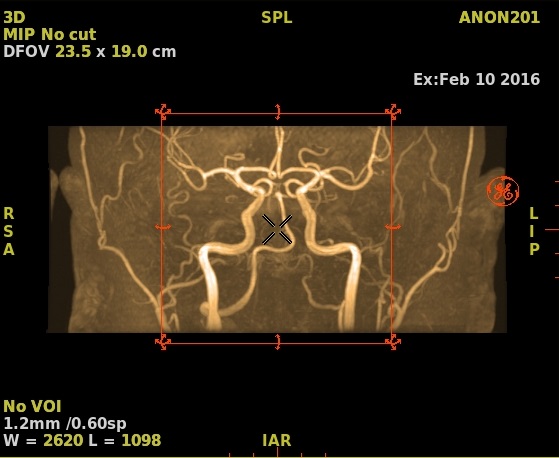
- 00000018WIA3003B970GYZ
- id_400230591.3
- May 23, 2022 6:22:48 AM
Adjust the W/L of an image
About this task
Use these steps to adjust the Window Width and Level of an image.
Note: Adjusting the W/L range will not affect the quantitative values when executing an ROI analysis.
Step-by-step instructions
- Method two: From the Mouse Modes toolbar, click the
 and left-click and drag the mouse to adjust the window width (left-right motion) or the window level (up-down motion).
 - Method 3: place the cursor over the yellow W/L text and complete the following:
Figure 1. W/L active annotation located in lower left corner of viewport 
- Middle-click and drag right to left to change the W/L values.
- Left or right click to view a menu and make a selection.
Figure 2. W/L menu 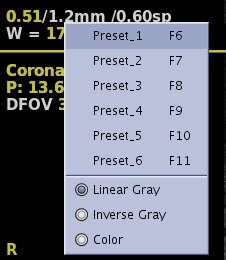
- Presets 1-6 are the same values as those assigned to F6-F11 keys. For details, see Display preferences procedure.
- Linear Gray is for standard image gray scale.
- Inverse Gray inverts the image gray scale.
Figure 3. Example of Inverse gray on a MIP image 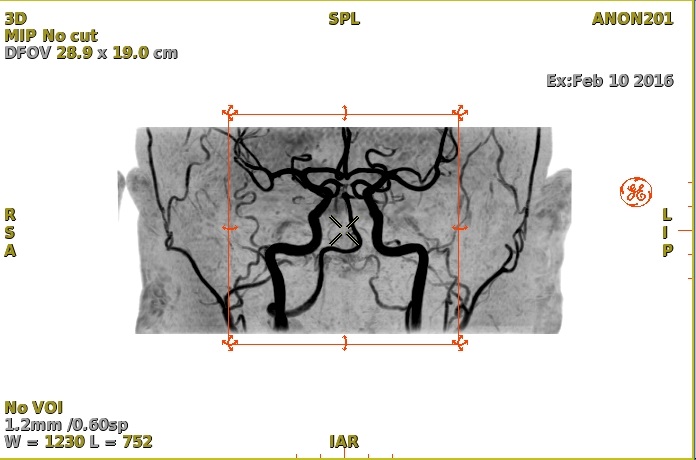
- Color to view the image in color. The effect varies based on the image type (parametric image, MIP, etc.).
Figure 4. Example of color on a MIP image