About this task
Use these step to preview images in a movie.
Step-by-step instructions
- Open the MR General Review.
- Click the desired viewport to make it active.
- From the Visualization toolbar, click the
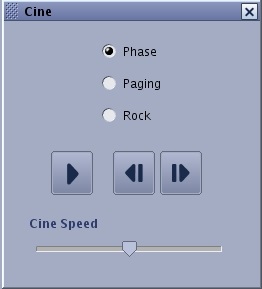
 to display the Cine screen.
 - From the Cine screen, click one of the viewing modes.
- Phase displays all phases from each slice at a time, for example with DWI or multi-phase series. For example, slice one phases 1-n, slice 2 phases 1-n, etc.
- Paging displays the movie from start to end, then start to end. For example, if there are 20 images in the movie, the images display 1-20, 1-20, 1-20, etc.
- Rock displays the movie from start to end, then end to start. For example, if there are 20 images in the movie, the images display 1-20, 20-1, 1-20, 20-1, etc.
- Click the controls to start/pause or advance one frame at a time.
- To start the movie, click the
 .
. - To pause the movie, click the
 .
. - To increment the movie one frame at a time, click the
 or the
  .
.
- Click and drag the Cine Speed slider bar to adjust the frames per second.
- When you are finished with the movie mode, click the X in the upper right corner.