

- 00000018WIA302DF770GYZ
- id_400258331.3
- Mar 9, 2022 4:08:38 PM
Toolbar: mouse mode icons
The mouse mode icons provide the ability to change the function of the Left Mouse Button to perform basic image manipulation.
The order of the icons on the toolbar are based on your preferences. To customize the icons on the toolbar, see Toolbar preferences procedures.
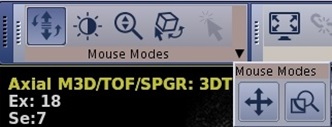
| Icon | Description/procedure |
|---|---|
 | Page/Rotate
Click the left mouse button and drag the mouse to rotate 3D/Oblique views and page axial/sagittal/coronal views. No 3D/oblique box is displayed when this mode is selected. |
 | Window Width/Window Level
Click the left mouse button and drag the mouse to adjust the window width (left-right motion) or the window level (up-down motion). |
 | Zoom
Click the left mouse button and drag the mouse to zoom the image in or out. |
 | Roam/Pan
Click the left mouse button and drag the mouse to roam the image up and down and left and right (only applicable if the image has been zoomed in). |
 | Select
Click to change the cursor to a selection mode. |
 | Deposit Points
This left mouse button is only available if an ROI is selected. Once the ROI is deposited, the Deposit Point icon is removed from the quick access tool bar. |
 | Magnify glass
Click the left mouse button and drag the mouse over an image to magnify the area under the glass. |