- 00000018WIA30DEE770GYZ
- id_400229471.3
- Mar 9, 2022 1:41:52 PM
Toolbar: top level buttons and icons
This section applies to the top level area of the MR General Review screen.
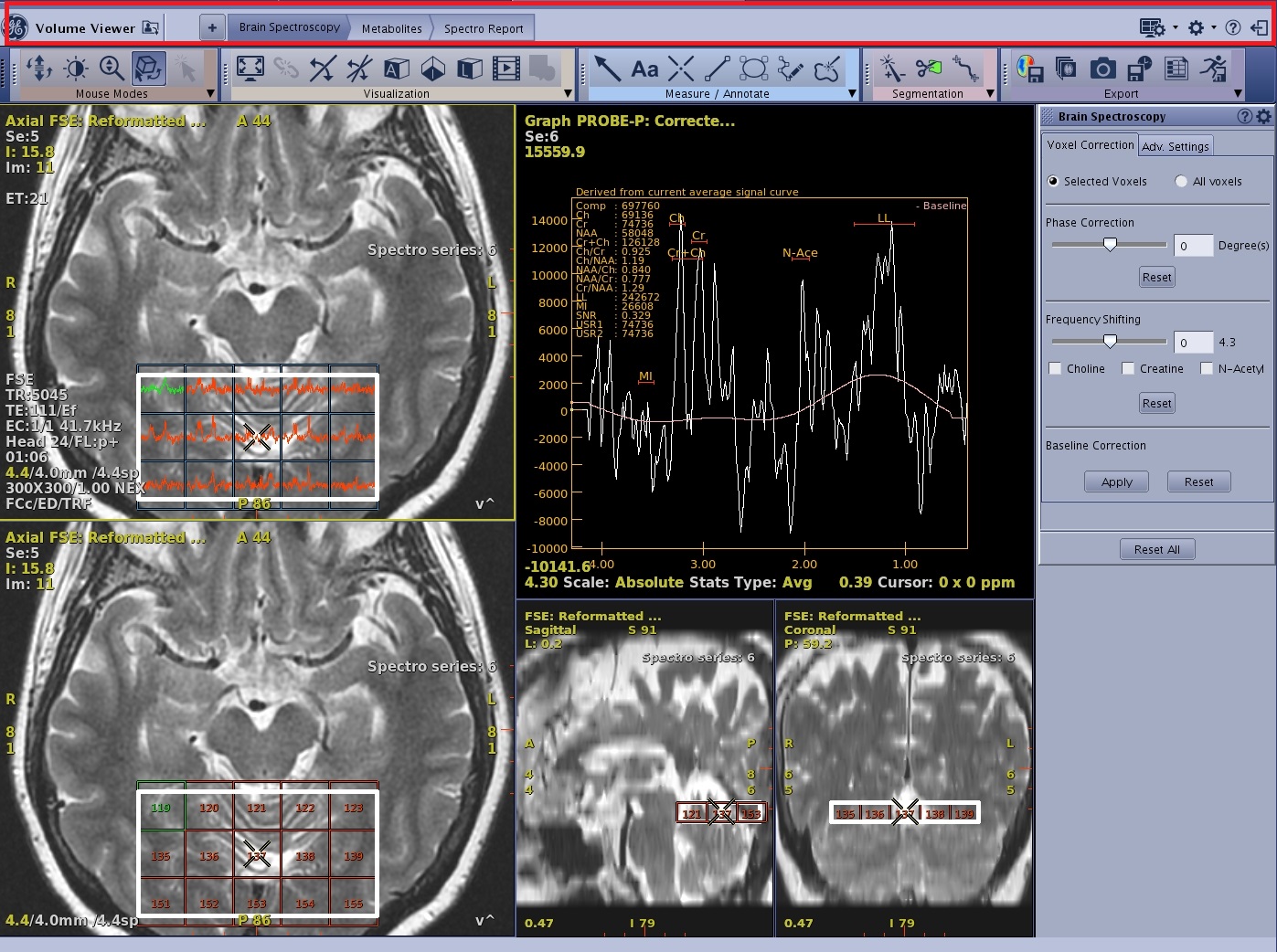
| Screen area/icon | Description/procedure |
|---|---|
 | 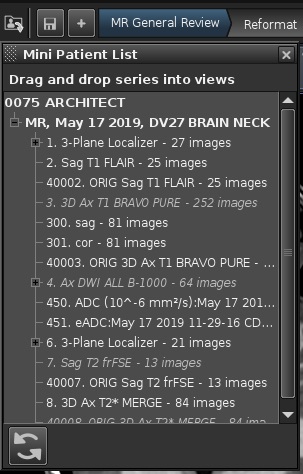 Click the Mini Patient list icon that allows the following:
For details, see the Figure 2. |
 | Review Steps
This area displays layouts and protocols that provide single click access to the most frequently needed processing tasks. For details, see Protocols and Review steps introduction. |
| Global icons
These icons are always available.
| |
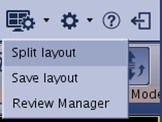
 | Layout and Review options
For details, see: Review Manager and layouts work area. |
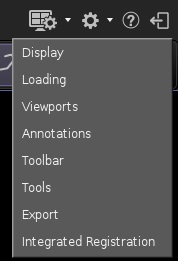
 | Preferences
It provides access to customize the MR General Review preferences.
For details, see Preferences introduction. |
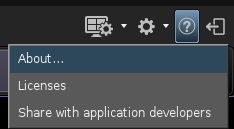
 | Click to display the software version number and Licenses.
|
 | Exit
Click to exit the MR General Review application. |