

- 00000018WIA303E7970GYZ
- id_400219771.2
- Mar 9, 2022 4:24:24 PM
Toolbar: segmentation icons
Segmentation icons provide the ability to display a specific feature within the image; you can define what part of the exam data should be visible, and what part should not.
To display a specific feature within the image, you can define what part of the exam data should be visible, and what part should not. The main tools you will use for this are:
- Thresholding: to extract a region of interest by selecting a range of voxel values that represents a specific tissue or anatomical feature.
- Scalpel: to perform cuts in the 3D volume to define the region of interest.
- Paint: to mark the region of interest with colored paint and then display only this region.
- Auto–select: to select an object and add it on or remove it from the selected view.
The process of removing structures is sometimes referred to as volume segmentation because the 3D volume is segmented, or split, in two parts: the volume of interest that is currently displayed, and the remainder that is removed from view.
After volume segmentation, the displayed part of the 3D model consists of one or more 3D objects. A 3D object is a part of the 3D model that is separate from other parts. Two 3D objects are separate if there is at least one voxel width of empty space between them.
Sometimes two seemingly separate objects still act as one, because they are still connected somewhere by a bridge of voxels. It is also possible that a seemingly single object turns out to consist of two or more parts, separated by narrow gaps. The tools on the Advanced Processing screen can help you to deal with these effects.
The order of the icons on the toolbar are based on your preferences. To customize the icons on the toolbar, see Toolbar preferences procedures.
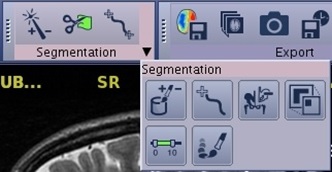
| Icon | Description/procedure |
|---|---|
 | Auto Select
Use to segment structures. Select an object and add it on or remove it from the selected view. For details, see: Auto select procedure. |
 | Scalpel
Use to draw a structure to cut inside or outside the contours and to adjust the depth of the cut. For details, see: Scalpel procedure. |
 | Two click trace
Use for vessel tracking in two clicks. Measurement length can be performed on the lumen viewports. For details, see: Quick vessel trace procedure. |
 | One click trace
Use for vessel tracking in one click. Measurement length can be performed on the lumen viewports. For details, see: Quick vessel trace procedure. |
 | Paint on slices
Use to draw contours of the structure of interest on different slices of same plane. The volume to keep is interpolated based of the defined contours. For details, see: Paint on slices procedure. |
 | Quick paint
Use to paint with a sphere-shaped cursor on reformatted slices (these can be baseline or oblique views) to define the volume of interest. For details, see: Quick paint procedure. |
 | Keep/Remove object
Use with a volume segmentation, to remove the selected object, or keep that object and remove all non–selected objects from the view. For details, see: Remove or keep objects procedure. |
 | Advanced processing
Consolidates many processes: dilate, erode, filters, subtraction methods, close gaps/open bridges, close holds, and extract surface. For details, see: Advanced processing procedure/considerations. |
 | Threshold
Use to extract a selected range of voxel values that represent a specific tissue or anatomical feature. For details, see: Threshold procedure. |