Use these steps to paint with a sphere-shaped cursor on reformatted slices (these can be baseline or oblique views) to define the volume of interest.
Step-by-step instructions
Open the MR General Review.
Select the desired baseline or oblique view from which you want to start painting.
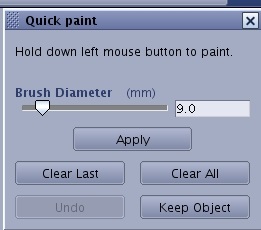
From the Segmentation Toolbar, click the Quick Paint icon ( ) to view the Quick paint screen.
Figure 1. Quick paint screen
Set the brush diameter size by moving the brush diameter slider.
Create the quick paint.
Note: You can click Undo to undo your last action.
Move the mouse pointer on the region of interest.
Click and drag the left mouse button. A sphere is deposited for each point along the path where the left mouse button is held down. The selected areas are highlighted on all selected baseline and oblique views.
Release the left mouse button to end the quick paint.
Click Apply to segment the 3D volume by removing all parts that are not painted.
Immediately after you click Apply, you can still click Undo segmentation and make corrections.
To remove paint follow these steps.
If paint spills outside the feature of interest, click Clear Last. Each Clear Last click removes part of the painted area.
To remove all paint from the 3D volume and start again, click Clear All.
To keep all pixels with the selected intensity, place the cursor over pixels that represent the pixel intensities you want to keep and click Keep Object. All other pixels are discarded.


 ) to view the Quick paint screen.