

- 00000018WIA30808970GYZ
- id_400266511.2
- Mar 30, 2022 10:11:43 AM
Advanced Processing Tools: use to refine segmented objects
Advanced Processing Tools are used to refine segmented objects or combine them using Boolean operations.
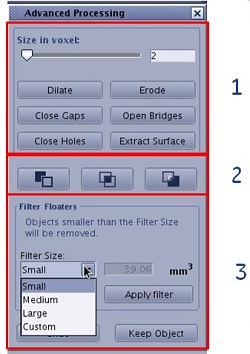
| Number | Description |
|---|---|
| 1 | Basic image processing operations |
| 2 | Segment activities |
| 3 | Filter floaters |
Prerequisite
It is mandatory before using them to perform an initial segmentation with any of the segmentation tools (threshold, AutoSelect, Paint, scalpel…).
Basic image processing operations
| Operation | Description |
|---|---|
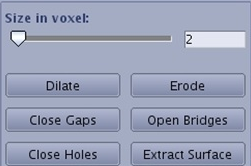
| Size in voxel | Use to adjust the intensity of the operation by setting the number of voxels. It determines the number of layers you want to add or remove. Change the value by using the slider or by typing in a value in the adjacent box. |
| Dilate | Adds one or more layers (20 maximum) of voxels to the surface of the current 3D objects. This feature can restore voxels that were removed by some operations like thresholding, erosion, or opening bridges. |
| Erode | Removes one or more layers (20 maximum) of voxels from the surface of the current 3D objects. |
| Close Gaps | Fills in the gaps and connects the adjacent features. Adjacent features in the 3D volume that appear to consist of a single object may be composed of more than one 3D object when you try to use Keep Object or Remove Object. This can be caused by the presence of narrow gaps, often only a few voxels in size, that separate the features. This mostly occurs when using thresholding to define a feature of interest, when the threshold setting is marginal. You can try to modify the threshold setting or alternatively use Close Gaps to fill in the gaps and connect the adjacent features. You set the size in voxels of the gaps you want filled in. This function resembles the Dilate function, but only gaps up to the specified size are filled in; the rest of the objects are not dilated. This function consists of performing a dilation followed by an erosion. Since erosion does not totally remove the voxels added by dilation, some small gaps or holes are filled in. A closing size of N is obtained by N dilations followed by N erosions. This means that small gaps or holes having one of their X, Y, or Z dimensions less than 2N are filled in. For example, a closing size of 3 is obtained by 3 dilations followed by 3 erosions. This means that small gaps having one of their three dimensions less than 6 are filled in. Open Bridges describes the opposite function. |
| Open Bridges | Removes residual bridges and separates adjacent features in the 3D volume. You set the size in voxels of the bridges you want removed. This function resembles the Erode function, but only the bridges up to the specified size are eroded, not the rest of the objects. This function consists of performing an erosion followed by a dilation. Since dilation does not totally restore the voxels removed by erosion, some fine structures remain eroded. An opening size of N is obtained by N erosions followed by N dilations. This means that fine structures having one of their X, Y, or Z dimensions less than 2N are removed. For example, an opening size of 3 is obtained by 3 erosions followed by 3 dilations. This means that fine structures having one of their three dimensions less than 6 are removed. Close gaps describes the opposite function. |
| Close Holes | Resets any such inner holes to the original voxel values. When using thresholding, this can result in holes appearing inside the 3D volume (i.e., closed spaces inside the 3D volume where the voxel value is outside the selected range). By default, the voxel value inside such inner holes will be set to the same value as the outside of the 3D volume (empty space). If you have used the Scalpel or Paint tools to remove part of the 3D model, any holes enclosed within the 3D volume resulting from these operations will also be re-filled when you use this feature. |
| Extract Surface | Removes all data from the inside of the current 3D objects, leaving only the surface. Since the inside of the objects no longer contain any data, little if any further processing is possible. Use this function to speed up the display after you have fully defined your region or object[s] of interest; e.g., during rotation or batch filming, or to modify 3D shading. Enter a surface thickness of at least 2 to guarantee connectivity information for any further operations such as selecting or removing objects. With a value of 1, the result appears visually correct, but the surface is too thin to be considered as one or more coherent objects. |
Segment activities

Boolean operations can be used to combine 3D segmented objects together.
All objects must originate from the same master volume.
Perform initial segmentation to generate objects to combine using any segmentation technique (threshold, AutoSelect, paint…).
- From the Segmentation Toolbar, click the Advanced Processing icon (
 ).
). - Display objects to combine in separate views.
- Isolate views to combine.
- Set mouse mode to Select mode.
- Double click to isolate the first view of interest.
- Single click to isolate the second view of interest.
- Views of interest should display yellow and blue borders while the other views should not have color borders anymore.
- Select operation:
- Intersection icon (
 )
) - Subtraction icon (
 )
) - Addition icon (
 )
)
- Intersection icon (
| Segment option | Description |
|---|---|
Intersection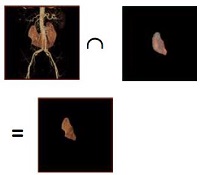 | Intersection keeps only the voxels that exist in the same location in both objects. The values of the resulting voxels are those of the original object in the primary view. |
Addition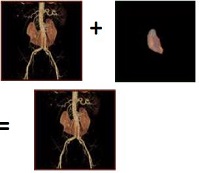 | Set Addition keeps all the voxels that exist in either of the objects. If a voxel belongs to both objects, its value in the primary view is kept. Use set addition to combine structures obtained using different processing tools. For example, you may need different tools and settings to process a vessel from the left side of the patient and another vessel from the right side. By treating the two vessels separately and storing the results in the Save/Recall panel, you can optimize the processing for each side. After recalling both from the Save/Recall panel in two separate views, the set addition operation allows you to join and display them as a single object. |
Subtraction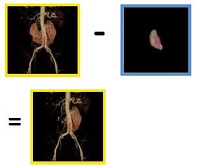 | Set Subtraction removes all the voxels in the primary view that also exist in the secondary view. In other words, the secondary view is subtracted from the primary view. Using a set operation on the data from two 3D models results in a single object (3D model). As an example, you can start by using thresholding to select the entire hip bone structure and store the result in the Save/Recall panel. Next, isolate and select only the anatomy of interest (using paint or scalpel) and store the result separately. This is different from the merge operations, which allow you to display more than one 3D model at the same time and show their spatial relation by means of cut planes and different levels of transparency. Merge operations are strictly a display feature; they do not combine the separate 3D models. To adjust yellow and blue borders of the view, single click on the view to set yellow, the other one will turn to blue. |
Filter Floaters
| Filter Floater selections | Description | ||||
|---|---|---|---|---|---|
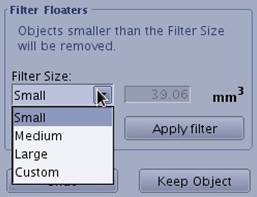
| Filter size | Filter Floaters allow you to remove small residual objects from the 3D model based on size (small, medium, large or custom) that can appear after thresholding, usually resulting from noise in the original image set.
| ||||
| Undo | Undo becomes active after you have performed an action. | ||||
| Keep Object | Place the cursor over pixels representing the pixel intensities you want to keep. Keep Object keeps all pixels with the selected intensity. all other pixels are discarded. | ||||