

- 00000018WIA3052D970GYZ
- id_400232581.4
- Mar 25, 2022 6:17:52 PM
ViosWorks send data
Before you begin
About this task
4DFLOW is a component of ViosWorks.
Viosworks is powered by the Arterys cloud platform, which is FDA cleared and CE marked. Arterys is a web-accessible, image analysis software intended to automate and simplify the visualization and quantification of cardiovascular images.
For documentation on how to effectively use and install the Arterys platform, visit https://support.arterys.com.
For any questions related to the Arterys platform, email support@arterys.com.
Step-by-step instructions
- From the header area of the screen, click the
 to open the Image Management work area.
 - Select the exam or series you want to transfer that has 4DFLOW data sets.
- The exam must be ended and all reconstructions completed.
- There is one file per exam that contains the selected series for the data transfer. If an exam is selected without selecting individual series, then all series in the exam will be sent as one file.
- Press Shift and simultaneously click the first and last item.
- Press Ctrl and simultaneously click individual items.
Figure 1. Example of Patient list with ViosWorks compatible series selected 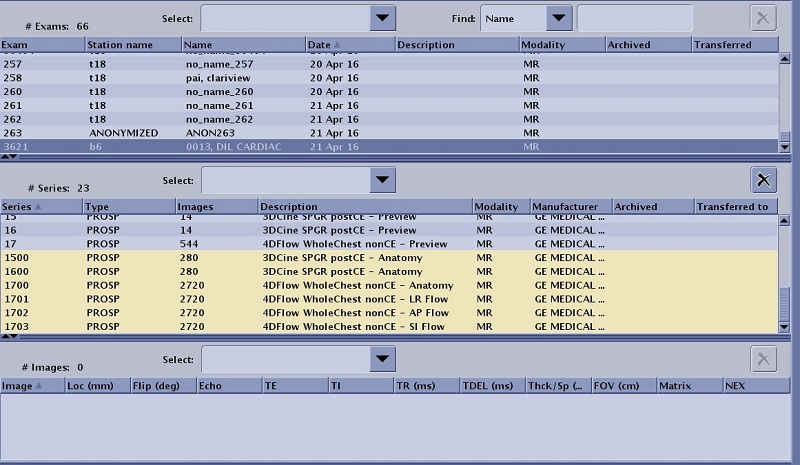
- From the Data Apps list, click ViosWorks Transfer.
Figure 2. Data Apps list 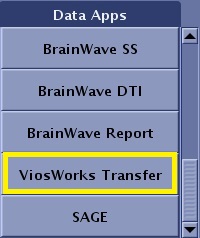
- From the ViosWorks screen, click Send to activate the transfer process to Arterys.
Figure 3. ViosWorks screen 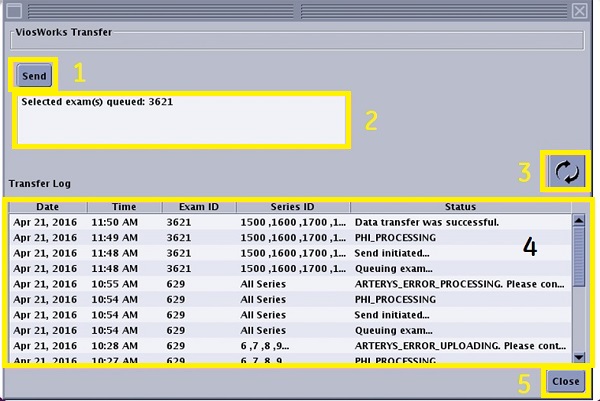
Table 1. Image legend Number Description 1 Send activates the transfer process from the MR system to the Arterys PHI server. 2 Message display area that indicates if the selected exam or series has been accepted after you click Send. 3 Refresh icon. Click to update the transfer log. 4 Transfer log lists the exam/series that have been queued for transfer. The Status column is updated when you click the Refresh icon. Messages are sorted by exam ID with the latest queued exam and its latest status at the top of the list.
Displays transfer statuses from the last 7 days is displayed.
5 Close button closes the ViosWorks screen. - Click the
 to update the transfer log.