

- 00000018WIA30EBC770GYZ
- id_400214171.3
- Feb 14, 2022 5:57:12 PM
Schedule patient and Worklist Manager
Click the  from the header area of the screen to open the Worklist Manager work area.
The Worklist Manager is the desktop from which you complete the following tasks:
- Schedule and select patients for scan activities
- Enter patient demographic information
- Complete HIS/RIS tasks
- Start an exam
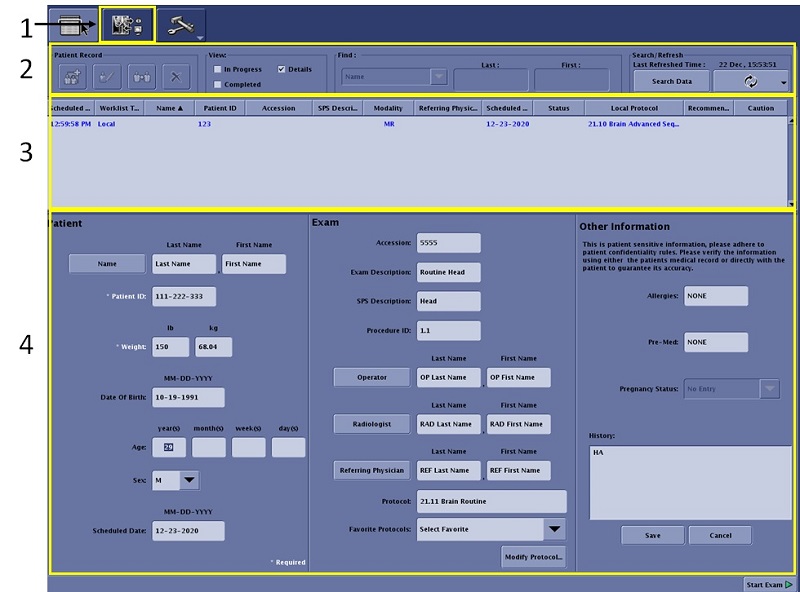
| Number | Description |
|---|---|
| 1 | Screen header area The Worklist icon ( |
| 2 | Worklist Manager header area |
| 3 | Worklist Manager Patient List |
| 4 | Patient information area:
|
Worklist Manager Header area

| Number | Parameter | Description |
|---|---|---|
| 1 | Patient record area
| 1. The New Patient icon  allows you to enter a new patient into the Worklist Manager. The patient is added to the Patient List once you click Save in the Other Information area/Screen header area. allows you to enter a new patient into the Worklist Manager. The patient is added to the Patient List once you click Save in the Other Information area/Screen header area. 2. The Edit icon 3. The Duplicate icon 4. The Delete icon |
| 2 | View area
| The Patient List, by default, is comprised of all patients that have been added to the Worklist but have not been scanned. There are two Status options that change the patient list contents.
|
| 3 | Find area
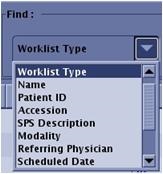
| The Find menu contains all the patient list menu bar columns. Several of the menu selections require text fields to be completed resulting in a more refined sorted Patient List. |
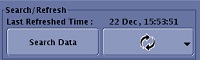
| 4 | Search/Refresh area
| Last Time Refreshed displays the last date and time the list was refreshed. Refresh updates the Patient List with the most recent data from the HIS/RIS system. The Refresh arrow opens the Refresh screen. The Search Data button opens the Search Data screen. |
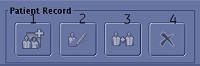
 opens the currently selected patient in the Worklist Manager so that you can change patient information.
 duplicates the currently selected patient in the Worklist Manager. This feature is typically used to generate a new scan session on a patient that is still listed in the Worklist.
 removes a patient from the Worklist Manager.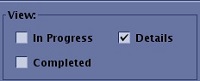
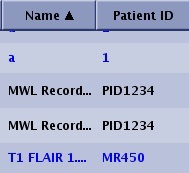
Patient List area of Worklist Manager

| Parameter | Description |
|---|---|
| Schedule date | The date the exam was scheduled. This information is automatically populated from the HIS/RIS system or from the time the patient was scheduled on the MR system. |
| Worklist Type | Local: patient was entered from the MR system. RIS Edited: patient was entered from the RIS system. RIS Duplicated: the patient was entered from the RIS system and duplicated. |
| Patient Name/ID
| The Patient Name is populated from the entry made from the New Patient screen or from your HIS/RIS system. The blue text in the patient list represents patients you have added to the list. The black text in the patient list represents patients that have been added from the HIS/RIS system. |
| Accession | Accession number is related to a number assigned by the hospital, clinic, or site, and is tied to the patient’s records. You can enter the number manually or by using the optional barcode reader (if applicable) or it is automatically populated from the HIS/RIS system. This text box is limited to 16 characters. |
| SPS Description | The SPS description is the exam the referring physician requests that is populated from a HIS/RIS system or it can be entered manually. Some PACS systems use the SPS information for the hanging protocol. SPS is a column on the Patient List. |
| Modality | Identifies the modality, for example, MR or CT. |
| Referring Physician | The name of the referring physician that was entered from the New Exam screen of the Worklist Manager. |
| Local Protocol | The protocol selected from the Protocol screen that opens when you click Show All Protocols/Modify Protocol from the New Exam screen. |
| Recommended Protocol | Displays the RIS protocol code that was entered at the time the patient was scheduled in the RIS system. Once the patient is selected from the Worklist Modality, the RIS code changes to the protocol label. You can open and change the protocol; the updated protocol is displayed in the Local Protocol column. |
| Caution symbol
| A Caution symbol  appears next to the Allergies and Pre-Med fields when any text is entered on the New Other screen appears next to the Allergies and Pre-Med fields when any text is entered on the New Other screen |
Patient Information screen area
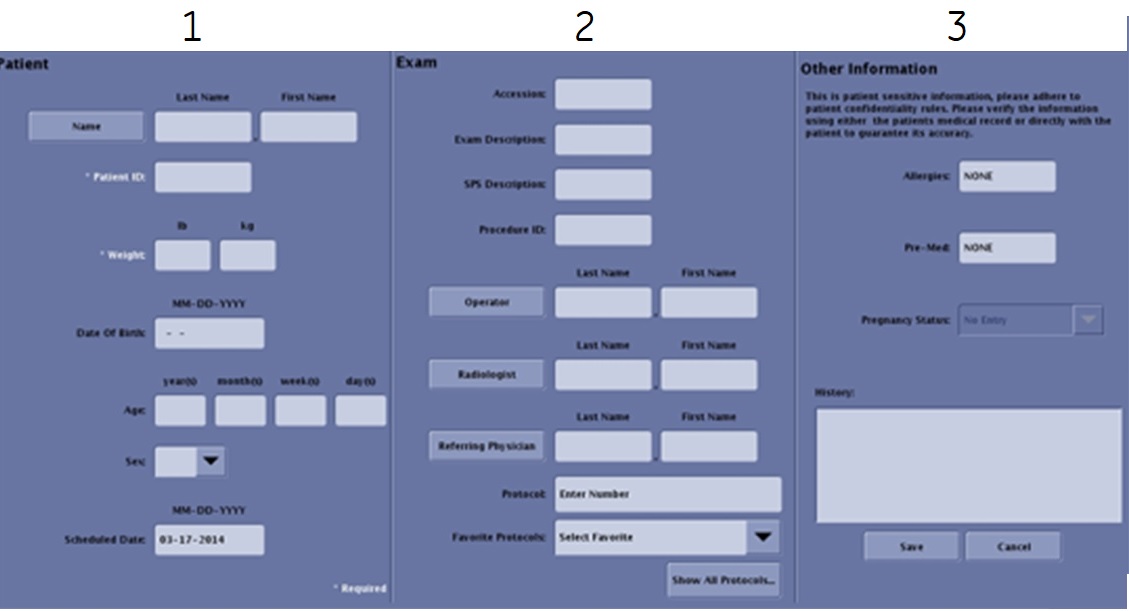
| Number | Description |
|---|---|
| 1 | Patient screen |
| 2 | Exam screen |
| 3 | Other information |
Footer area
The Start Exam button starts a new scan session.