- 00000018WIA30DDC770GYZ
- id_400233411.2
- Feb 8, 2022 11:35:37 AM
Protocol Properties
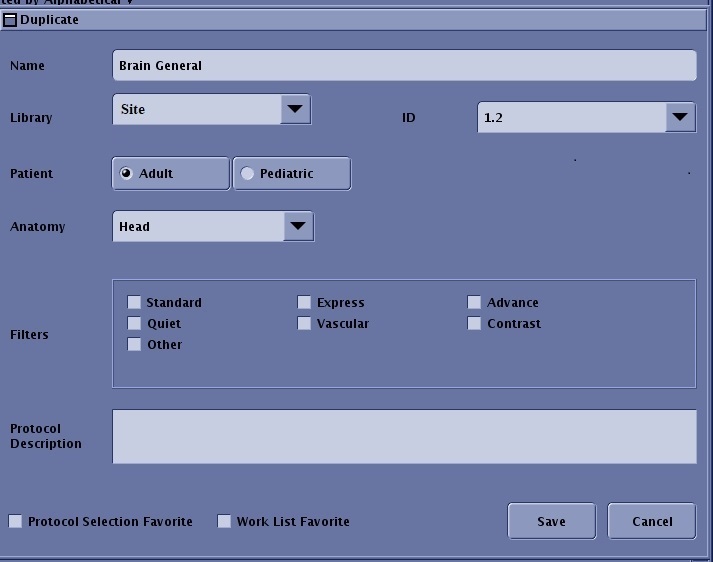
When you save, edit, or duplicate a protocol, the Protocol Properties screen opens.
| Parameter | Description |
|---|---|
| Name
| The base protocol name is the default name shown in the Name text box. Edit the text to provide a unique name for the protocol. The protocol name appears in the list of protocols displayed when the anatomy tab and filters are selected from scan or tools. |
| Library selection
| Select the Site or Service to place the protocol in a specific library. |
| ID
| Select the ID from the drop-down menu. |
| Age selection
| Two sets of protocols can be created: adult or pediatric, which means that all the protocols located within a tab can be unique when the Adult or Pediatric option is selected. |
| Anatomy
| In the Anatomy menu, select an anatomy type to organize the protocol by anatomy. There are eight selections. The Other selection can be used to organize any type of protocol. The Template selection has protocols organized by mode/PSD family. When you select one of these protocols, a limited number of scan parameters are completed. Template tab is typically used to create a protocol when you want to enter each scan parameter. |
| Filters
| Select one or more Filters for the protocol. When you are viewing the protocol list, click a filter and only protocols that have been tagged with the filter(s) appear in the list. Filter selections cannot be edited, added, or deleted. |
| Protocol Description
| In the Protocol Description text box, type the descriptive text that you want to appear on the Protocol screen, from which it can only be viewed and not edited. |
| Favorite
| Tagging a protocol as a Protocol Selection Favorite results a star appearing on the favorite folder when you view the Protocol screen from either the Scan or Tools work area. You can only tag a protocol from the folder level and not from an individual series level. Tagging a protocol as a Worklist Favorite results in the favorite protocols displayed in the Favorite Protocols menu, which is located on the Exam screen. |