

- 00000018WIA300DC770GYZ
- id_400248641.8
- Aug 12, 2022 5:12:47 PM
Protocol
A protocol is a group of series that have pre-programmed scan parameters used for imaging a particular part of the body. Modifying a protocol allows you to make changes to existing protocols. You can make the modifications without modifying the original or create a whole new protocol using an existing protocol as a base.
A maximum of 500 protocols can be stored.
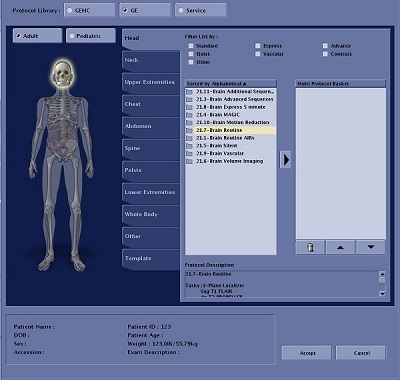
The protocol screen can be opened from two locations on the MR console; the screens are slightly different.
| Description | Screen |
|---|---|
| System Management protocol screen: Click | 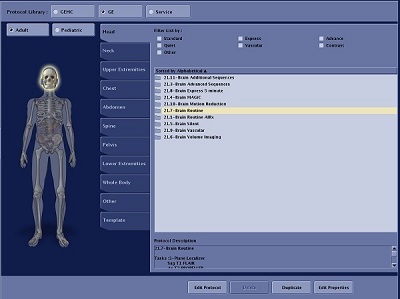 |
Scan Protocol screen:
|  |

| Parameter | Description |
|---|---|
| Library selection
|
|
| Age selection
| Adult and Pediatric |
| Filters
| One or more filters can be selected for a protocol. When you are viewing the protocol list, click a filter and only protocols that have been tagged with the filter(s) appear in the list. Filter selections cannot be edited, added, or deleted. |
Protocol tabs 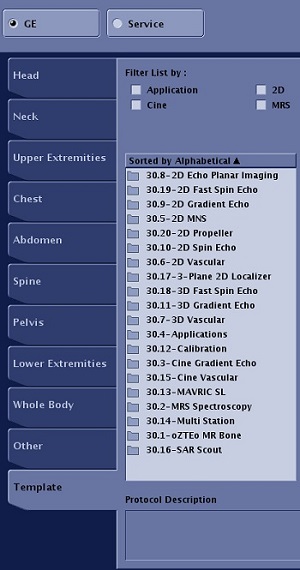
| All protocols are organized within one of the 10 tabs:
|
| Protocol sort
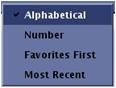
| Right-click the Protocol List to display a Sort menu. Select an option to sort the current list of protocols. Click the Protocol List menu bar to reverse the sort order. |
| Protocol Description
| You can enter protocol description text when you create or overwrite a protocol. If you do not add a description, a default description is provided. The text can only be edited from the System Management Protocol screen. |
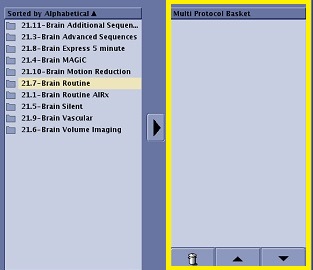
| Multi Protocol Basket
| The Multi Protocol Basket lists the series that have been pulled from the Protocol List. Series from separate libraries and protocols can be added to the Multi Protocol Basket list. The arrows and trash can at the bottom allow you to move or delete items in the list.
|
| System Management buttons
| Click Edit Protocol to open a Protocol Edit session. All the series in the selected protocol appear in the Workflow Manager and a Protocol Notes screen displays. Click Delete to remove protocols from the Site or Service library. This button is not available for protocols within the GE library. Click Duplicate to copy an existing protocol and modify the protocol properties. You can then edit the protocol. This is particularly useful when you want to change a few scan parameters from an existing protocol and then give the protocol a new name. For example, if you have a T2 FSE head protocol and you want to create a new PD FSE head protocol with all the same parameters except TE, ETL, and TR, then duplicate the T2 FSE protocol, edit and save the protocol properties and then Edit Protocol. Click Edit Properties to display the Protocol Properties screen. |




 to send the protocol to the Multi Protocol Basket.