

- 00000018WIA30CCC970GYZ
- id_400216291.3
- Jun 18, 2022 3:37:22 PM
Flow Analysis
The Flow Analysis application is a purchasable option for the MR system. The Flow Analysis feature allows automatic segmentation of 2D FastCine Phase Contrast and Cine Phase Contrast (PC) images with through plane encoding, to calculate flow and velocity information at various points in the cardiac cycle. The application allows the exporting of flow graph results as a PDF or DICOM report, and Phase Contrast cine images with regions of interest, which can be saved to the patient study listing as a separate DICOM series for future review or filming.
Considerations
Keep the following important points in mind when using PURE or other image filter options with scans that are post processed or displayed in a viewer.
- The PURE feature changes the pixel intensity in the image to provide a more uniform image. For example, when cardiac protocols are used in conjunction with PURE for dynamic MRI time-course imaging, delayed enhancement, StarMap and phase contrast imaging, a modification to the AW applications of ReportCARD*, Flow Analysis, StarMap or AngioCARD difference threshold may be required. We recommend disabling PURE for all phase contrast acquisition. It is recommended to either disable PURE for dynamic time-course, delayed enhancement, StarMap studies or apply the PURE feature uniformly across all the series.
- The output of post processing can be modified with any change to the protocol. For optimal image quality, keep consistency with protocols and use the same type of filter or apply PURE for both pre and post contrast imaging.
- If using the ReportCARD, Flow Analysis, StarMap or AngioCARD post processing software, refer to the operator manual regarding any change to your imaging protocol and the use of PURE or other image filtering techniques.
Use these steps to launch Flow Analysis from your MR console.
- Select an MR exam that has compatible Phase Contrast data (2D FastCine and Cine Phase Contrast).
- The exam can contain one or more phase contrast series. The application only loads and displays all the phase contrast series in the exam.
- From the Session list of programs, click Flow Analysis.
Figure 1. Session Apps list 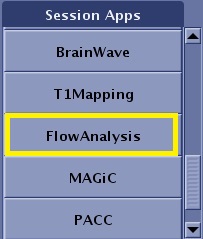
- View chapter 4 of the Flow Analysis operator manual for information on how to perform flow analysis. From the Flow Analysis screen menu bar, click . A browser opens and displays a PDF of the operator manual.
- To change the user interface and operator document language, contact your service representative who can change the language configuration from the Guided Install feature on the MR system. Language preference selection is not available from the MR system Flow Analysis.
- When generating image data sets in Flow Analysis, consider the following:
- Flow analysis application on MR console uses the following numbering system to number the series that it creates: Flow Data, Flow data signed, Flow Report and Flow cine secondary capture:
- New series number = N*100+i where N=1st PC series in exam and i incremented until an empty series is located.
- "Flow cine" series, N=PC series associated with the data and i incremented until an empty series is located.
- Flow analysis application on MR console uses the following numbering system to number the series that it creates: Flow Data, Flow data signed, Flow Report and Flow cine secondary capture:
- Even though Flow Analysis tab has Show Filmer on the session tab, if you open the Filmer, you can cannot film Flow Analysis images. To film an image, complete the following steps:
- Create a screen capture within Flow Analysis: click .
- From the Patient List select the screen saved data and open a Viewer session.
- Open the Filmer from the Viewer session tab.
- Film film the image(s).
- Select to exit Flow Analysis. Use this method to close the Flow Analysis application and to automatically save all analysis performed to date.
- If you quit the application from the Flow Analysis session tab (click Close), the application closes without saving the Flow Analysis data.