

- 00000018WIA30538870GYZ
- id_400245721.4
- Aug 12, 2022 3:00:58 PM
Manual Prescan
About this task
Use MPS:
- if APS fails
- when a particularly strong or weak signal exceeds the system’s ability to self-adjust
- when values have been manually set for chemical saturation techniques
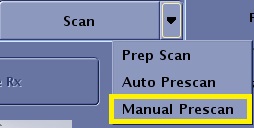
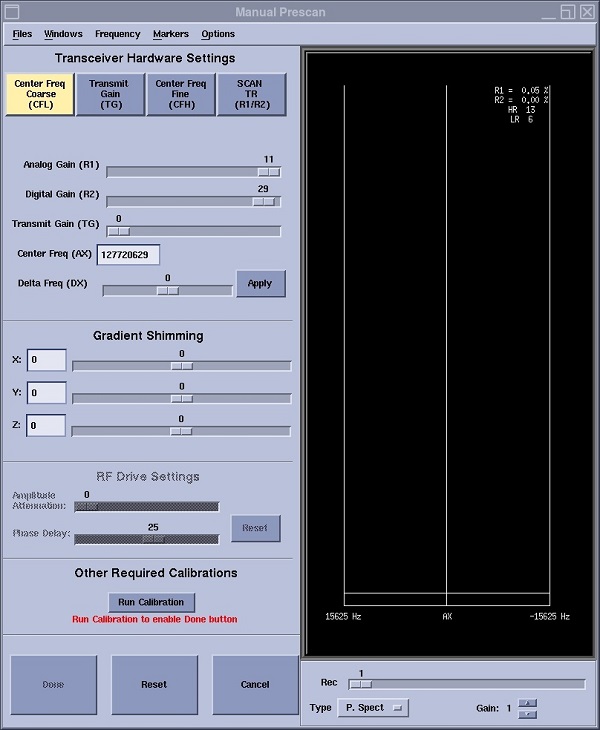
The Manual Prescan screen is displayed when you select Manual Prescan from the scan menu.
| Parameter | Description |
|---|---|
| Files menu
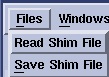
| Allows you to either read or save a shim file. |
| Windows menu | Allows you to change the display area: single display or split screen. The split screen allows you to tune two shims at the same time. |
| Frequency menu
| Allows you to save the current frequency or restore the last saved frequency. |
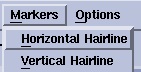
| Markers menu
| Marker icons display either a vertical or horizontal marker on the signal display area. The markers are toggles: click once to turn it on and click again to turn it off. |
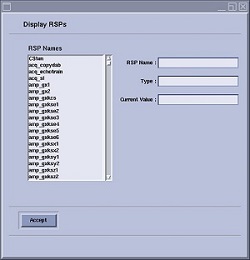
| Options menu displays the RSPs screen
| Displays the RSPs screen. RSPs Names: An alphabetical list of all the Realtime Sequence Parameters. Use the scroll bar on the right side of the list to scroll through the parameters. Double-click a parameter to display it in the RSP Name field. RSP Name Field: displays the currently active RSP. You can either double-click a parameter from the RSPs Names list or you can type the name in the text field. Current Value: Type and enter new values for the currently selected RSP in the Current Value text box. It typically takes three prescan sweeps to see the effects of the new value on the spectrum. |
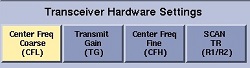
| Transceiver Hardware Settings
| Changes the signal display area based on the selection. For details, see: |
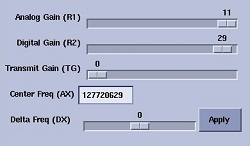
| Sliders
| Sliders are used to enter manual prescan values for center frequency, and transmit and receive gain adjustments. The various adjustments are made in order to move the location of the bandwidth and, more importantly, the center frequency line (AX). The AX text field represents the actual frequency to the center of the spectrum. |
| Receiver
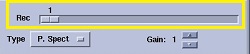
| Rec slider allows you to select a coil receiver of the coil currently plugged into the system. The spectrum or prescan profile are correlated with the selected coil receiver. Therefore, when a coil receiver is selected from the menu, the spectrum or prescan profile change accordingly. Use this feature to:
|
| Type
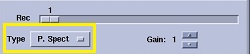
| When Center Frequency Coarse is selected, the following selections from the Type menu, are not an accurate representation of the acquired data. This is due to a known limitation of the number of points used to represent the data.
|
| Reset
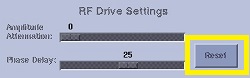
| Reset allows you to set the manual prescan values to the values that were displayed when you first opened the Manual Prescan screen. |
| Run Calibration
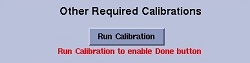
| Run Calibration allows you to run a coil calibration scan during manual prescan. Note that if the series for the Manual prescan requires a calibration you must click Run Calibration to proceed. |
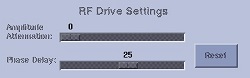
| RF Drive Settings
| Available with systems that have RF Drive Mode Quadrature and Preset selected.
|
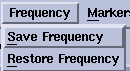

- After every successful execution of Auto prescan, the system's saved center frequency value is automatically updated . If you manually save the frequency from the Frequency drop-down menu, the saved value is overwritten after the next successful Auto prescan.
- Click Run Calibration if you want to acquire a manual calibration scan during the manual prescan procedure. A calibration scan is required for series that have the following parameters: ASSET, PURE, HyperBand. Auto Prescan acquires a calibration scan for those scan parameters.