Insert the media that contains the protocols into the appropriate device; e.g., insert the USB device into one of the computer's USB ports.
Open Protocol Exchange.
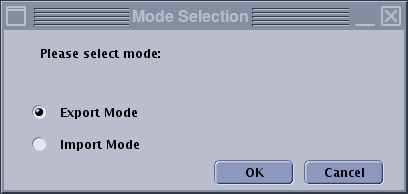
From the Mode Selection dialog box, click Import Mode and click OK.
Figure 1. Mode selection screen
A message appears if you are importing a protocol from a different hardware configuration. Respond to the message.
Not all USB devices are compatible. If a "Media not valid" message is posted, remove the USB device and insert a different USB device manufacturer. Some USB devices may require the device to be formatted. If that is the case, be sure to transfer all data off the device before formatting it. Formatting a USB device erases all data on the device.
From the Protocol Exchange screen, click the + symbol next to the device name to view the list of protocols.
Click and drag the desired protocol to the Protocol Selection area.
Click Import.
If protocol lockout is active, from the Password screen, type the password and click OK.
Check with your system administrator for your specific logon credentials, if you don't know your password.
Click Refresh to view any additional import devices inserted since you first displayed the screen.
If the protocol you are importing already exists, a dialogue box appears. There are three options:
Click Rename, press the Backspace key to erase the default name, type a new name, and click OK.
If there are any spaces in the name text field, the protocol is not properly saved. In addition, the protocol name cannot have the following characters: *, ?, /, {, : ,@, [, ].
Click Overwrite to overwrite the protocol.
Click Cancel to stop the import process.
After the message "Import protocol to system success" displays, click Quit and click Yes to the confirmation prompt.
The protocol should be in the Site Protocol library under the body part you saved it to.