

- 00000018WIA3043A970GYZ
- id_400222671.4
- Mar 16, 2022 7:20:06 PM
Average Protocol
About this task
This is applicable to any multi-time point data set. Use these steps, for example, when you would need to average multiple arterial phases in cases where the time resolution is very high.
Step-by-step instructions
- From the Review Steps area, click the

Figure 1. + icon 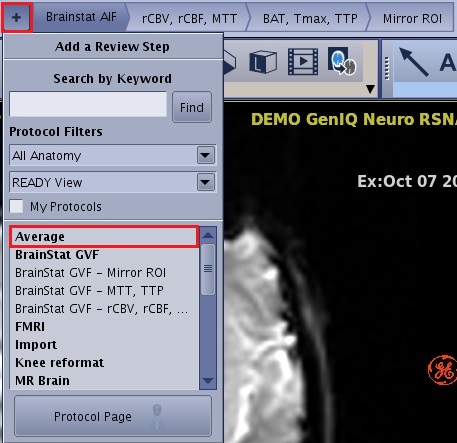
- From the Average screen, click and drag the double sliders to select first and last images and select an option from the Operator menu.
Figure 2. Average screen 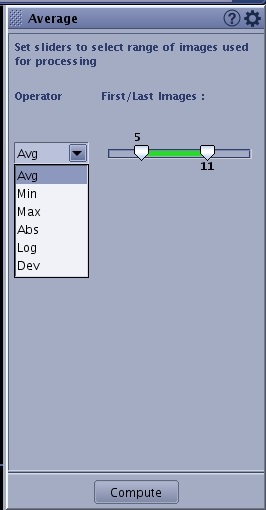
- Avg : Average of values from first image to last images selected in the slider.
- Min: Minimum of values among first to last images selected in the slider.
- Max: Maximum of values among first to last images selected in the slider.
- Abs: Average of absolute values from first to last images selected in the slider.
- Log: Average of logarithm of values from first to last images selected in the slider.
- Dev: Standard deviation of the values from first to last images selected in the slider.
- Kernel spatial smoothing can also be set in the Configure Settings page accessed from the
 .
.