

- 00000018WIA30D24C80GYZ
- id_20363681.2
- Jun 16, 2022 5:08:44 PM
ProtoCopy: copy scan parameters from an image into a protocol
About this task
Use these steps to copy the scan parameters from an image into a protocol on your MR system. The exam must be in a Progress state (you stopped scanning) or a Completed state (you ended the exam). Consider this information when using ProtoCopy:
- Protocol notes are saved with the protocol.
Step-by-step instructions
- From the header area of the screen, click the
 .
. - From the Data Apps list, click ProtoCopy to open the Protocopy screen.
Figure 1. Data Apps list 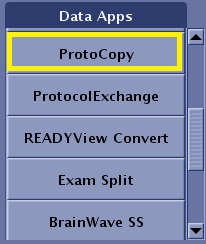
- If the exam displayed does not match the exam whose protocol you want to copy, select a new exam in the Patient List and click Update Exam.
- If the magnetic field strength or gradient fields mismatch between the protocol you are copying and your system configuration, a message displays above the Quit button. Modify scan parameters from the protocol program to optimize the protocol.
- Use the + or - key to change the currently displayed series or image. The parameters are copied from the currently displayed exam, series, or image.