Use these steps to change or select an anatomical region for tasks in the Task List. The Anatomical Region determines the optimum algorithm for the PURE intensity correction and applicability of MAGiC scans.
Step-by-step instructions
Select the active scan session tab.
In the workflow manager, select a single or multiple scan task(s).
If the scan task is in the ACT, PSCD, SCND, or Done state, the Anatomical Region cannot be changed. To change it you View/Edit the series.
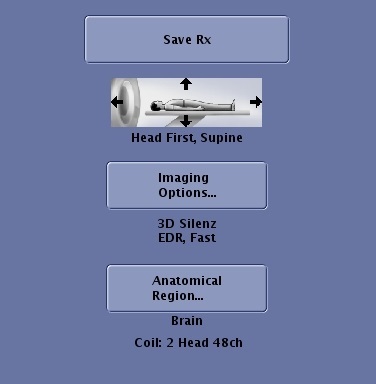
From the Series Summary panel, click Anatomical Region.
Figure 1. Series Summary panel
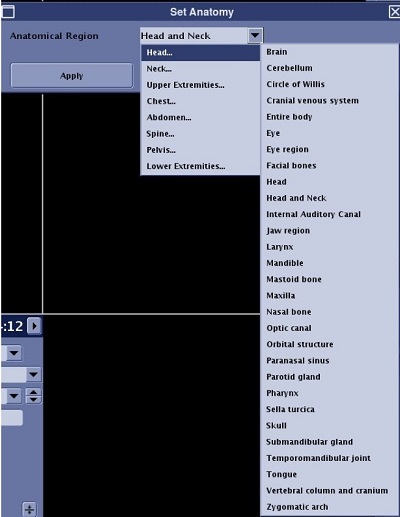
From the Set Anatomy screen, click the arrow next to the text box to view the menu.
Place the cursor over the anatomy area of interest and an expanded menu appears to the right. Click the anatomical region of choice from the expanded menu.
Figure 2. Anatomical Region menu
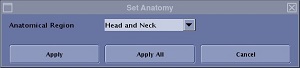
From the Set Anatomy screen, make a selection.
Figure 3. Select Anatomy screen
Click Apply to only apply the Anatomical Region for the currently viewed/edit series.
Click Apply All to apply the Anatomical Region to all New and InRx tasks in the Tasks List.
Click Cancel to close the Set Anatomy screen without applying the Anatomical Region.