Before you acquire a MAGiC DWI scan review the following:
MAGiC DWI images may show different contrast from images acquired directly with DWI due to different TE, Intra-Voxel Incoherent Motion effect (in liver), and in the brain, restricted diffusion effect.
MAGiC DWI may show artifacts or incorrect image calculations in moving organs.
MAGiC DWI may show artifacts due to diffusion distortion. Thus, to minimize the artifact, it is recommended to select Real Time Field Adjustment scan parameter from the Details tab .
MAGiC DWI should not be used in ADC calculation in READY View, FuncTool, or any other 3rd party tools.
Diagnosis should not be made by only reviewing the synthesized images.
Use these steps to compute the Synthetic DWI images. The data sets for the application are provided by the DWI acquisition.
Step-by-step instructions
From the header area of the screen, click the Management icon ( ) to open the Image Management work area.
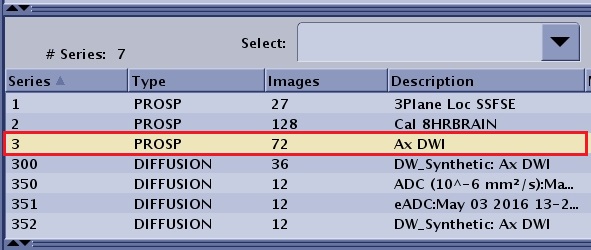
From the exam area on the Patient List, select the desired exam that has a Prospective DWI series.
From the series area on the Patient List, select the desired DWI series that contain 2 or more b-values without T2 images or 1 or more b-values with a T2 image.
READY View Synthetic DWI is not compatible with a series including multiple groups of slice locations.
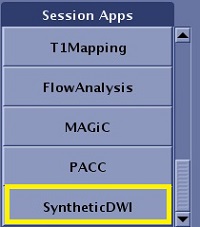
From the Session Apps list, click SyntheticDWI to launch Synthetic DWI application.
Figure 2. Session Apps list
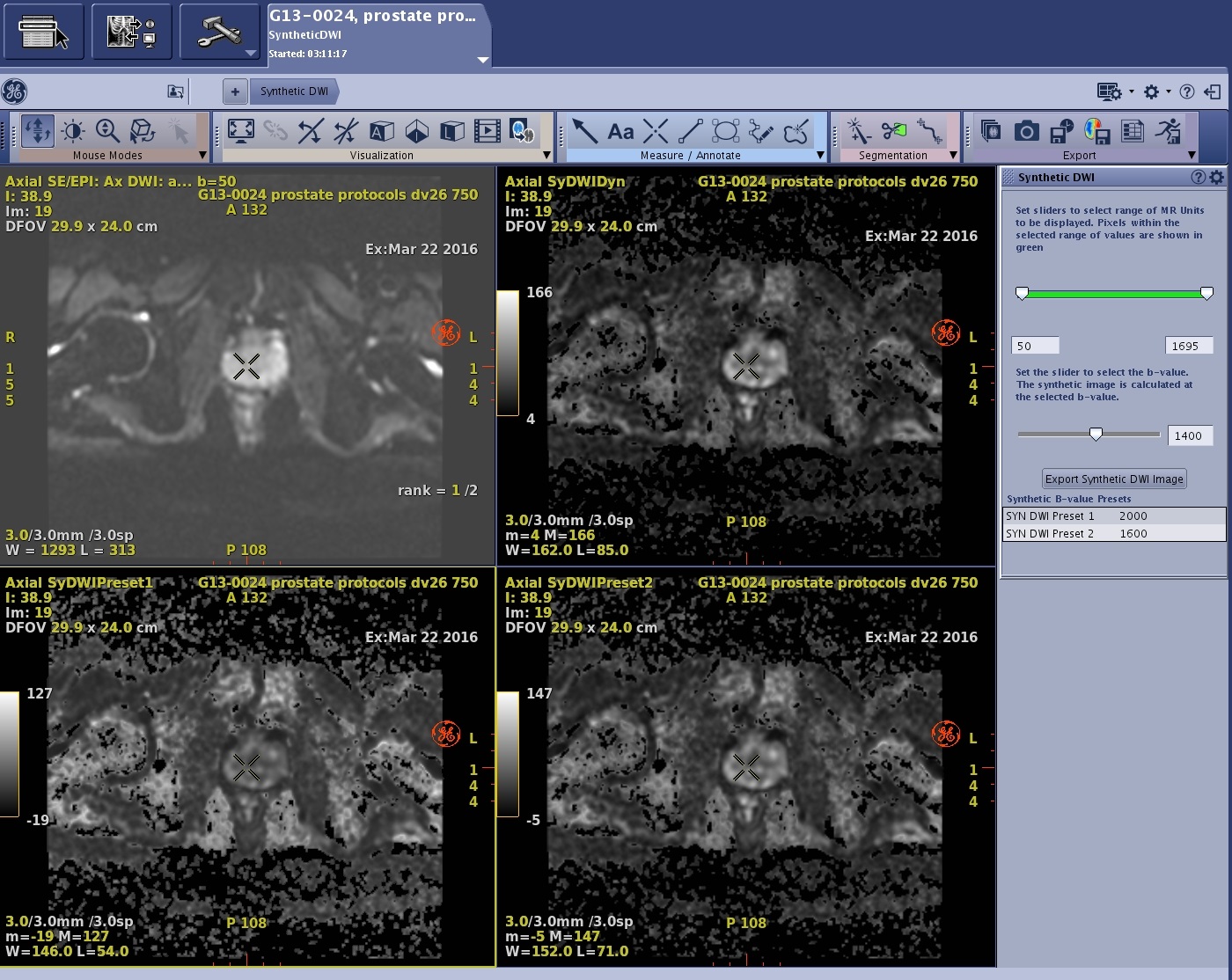
The left viewport displays the DWI image with the first b-value from the prospective DWI series.
The other viewports display the Synthetic DWI images generated in READY View. Figure 3. Synthetic DWI review step in READY View screen
Locate the area of interest.
From the Synthetic DWI screen, click and drag the b-value slider to adjust the b-value of the Synthetic DWI dynamic image (SYN DWI Dynamic) in the upper right viewport. This is the b-value that is used to generate the synthetic DWI image from Ready View.
Alternatively use the text box to the right of the slider.
The available b-value of the synthetic DWI is described in Synthetic DWI scan procedure.


 ) to open the Image Management work area.