To change Synthetic DWI settings, make a selection from the desired Synthetic DWI screens.
Synthetic DWI is commercially known as MAGiC DWI.
Step-by-step instructions
From the Synthetic DWI screens, adjust the threshold as needed.
The low and high threshold sliders allow you to define the range of MR values (pixel values) that will be processed by the protocol (shown by green hatching on the image. The threshold eliminates trailing echoes whose intensity falls below the noise floor. The default lower threshold value is 50.
Compute does not update the threshold. As the upper or lower slider is moved or a value entered in the text box, the threshold automatically updates.
Locate the area of interest for the source DWI image.
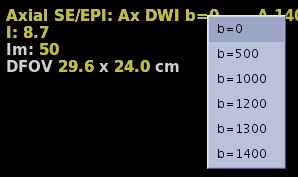
To view a particular b-value that optimizes image appearance, click the b-value annotation located at the top of the viewport and select a b-value from the menu. Figure 1. b-value menu
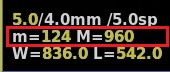
To adjust minimum and maximum values of the gray scale for the Synthetic DWI dynamic and preset viewports, place the cursor over the "m" (minimum) and "M" (maximum) active annotation and middle-click and drag. The active annotation is in the lower left corner of the viewport.
Figure 2. Active annotation to change the gray scale values
From the Synthetic DWI screens title bar area, click the Tools icon ().
From the Synthetic DWI screen, click the SYNDW - Advanced Settings arrow to change the b-value for the presets (lower viewports) or Kernel Spatial Smoothing.
To changes the Syn B-Value place the cursor in the desired text box and type and enter a new value.
The available range of synthetic b-valuse is based on the b-value entered in the b-value and NEX list and an upper and lower limit. The absolute minimum b-value is 100 and the absolute maximum b-value = 2500 as described in Synthetic DWI scan procedure.
The Kernel spatial smoothing default value is 0. As the kernel size increases, voxel averaging occurs and the image maps appears smoother.
Changed the desired settings.
Click Compute to generate synthetic images with the new settings.
The green progress bar updates as the Synthetic calculations are made.
Reset changes the selections to the factory default values.
Save All changes and saves your selections as the new default values.
From the Synthetic DWI screen, click the SYNDW- Final Settings arrow to review the settings. If you want to change any of the settings, click SYNDW - Advanced Settings arrow and make the desired changes.
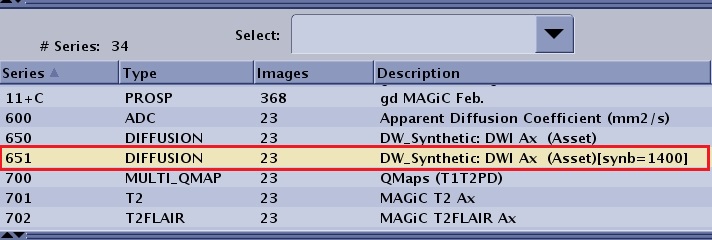
From the Synthetic DWI screen, if desired, click Export Synthetic DWI Image to create a new series in the Patient List populated with the READY View Synthetic DWI dynamic images displayed in the right upper viewport.
Figure 3. Patient list adds new series to the exam


 ).
).
 ).
).