
• Object ID: 00000018WIA30687870GYZ
  • Topic ID: id_40021772 Version: 1.3
  • Date: Mar 28, 2022 10:31:13 AM

SPR snap

About this task

Aquire an SPR (Software Problem Report) snap when the following scenarios occur:

  • Anytime there is a system hang, lock or crash. A crash can be defined as anytime the system as a whole or any part of the system quits functioning completely. When in doubt, run an SPR snap regardless. It takes only minutes and you don’t have to stop any other function to do so.
  • Anytime a problem forces you to reset the TPS or re-boot the computer.
  • Run the SPR snap, if possible, before resetting or re-booting the system. If this is not possible (for example, if the screen/mouse freezes), run the SPR Snap immediately after the re-boot.

An SPR snap is a script that is run on the scanner that captures a file with the following:

  • all of the most recent error messages
  • the most recent protocol run
  • log files that may indicate where a problem occurred
  • your description of what went wrong

This file can then be viewed for analysis by the engineering group.
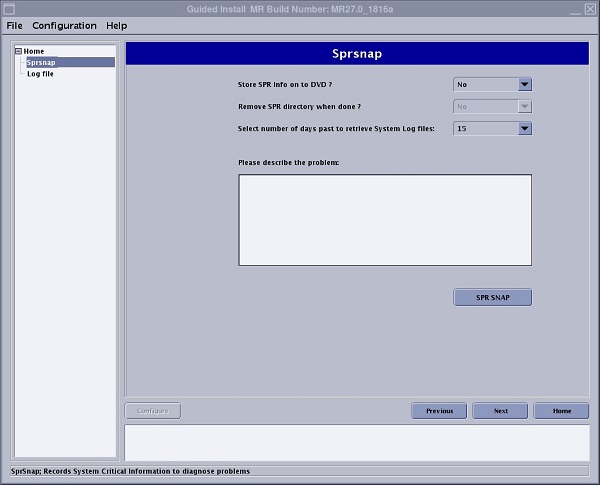
Figure 1. SPR snap screen
Table 1. SPR snap screen details
Screen areaDescription
SPR snap text fields
Figure 2. Store on DVD
A Yes or No option is available. Typically select No. The online center pulls the information when you log a complaint through Insite.
Figure 3. Remove SPR directory

Only respond with a Yes if you stored the information on a DVD.

Figure 4. Retrieve logs

Number of retrieve days are: 2,7, 15 and 30.
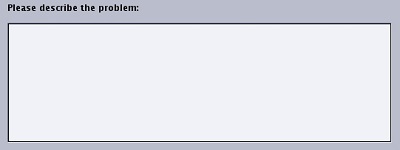
Figure 5. Description text field

Text field to provide a detailed, yet brief description of the problem.

SPR snapThe SPR SNAP button starts the snap procedure.
Previous

Next

Home

These buttons allow navigation on the currently active Guided Install screen.
SPR log fileThe log file updates when an SPR snap is executed.
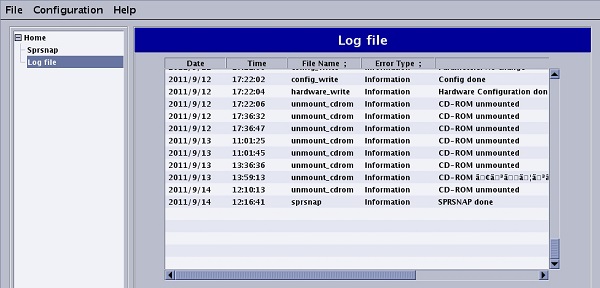
Figure 6. Sample of an SPR log file screen

Use these steps to acquire an SPR snap.

Step-by-step instructions

  1. Open Guided Install.
  2. From the Guided Install list of applications, click Spr Snap.
  3. Click Start.
  4. If Sprsnap is not automatically selected in the left panel, click Sprsnap.
  5. From the SPR snap screen, complete the following fields.
    1. From the left panel, click sprsnap.
    2. Select Yes or No to the question "Store SPR Information onto DVD?"
      If you respond with a Yes, insert a DVD into the DVD drive.
    3. Select Yes or No to the question "Remove SPR directory when done?" This option is only available if you selected Yes to the "Store SPR Information onto DVD?" question.
      Typically select No so that, if needed, your service engineer can view the SPR directory.
    4. Select how far back you want to retrieve the system log files.
      • Number of retrieve days are: 2, 7, 15 and 30.
      • An SPR snap can sometimes take as long as 15-20 minutes. Generating traces for the core files is one of the most time consuming parts of an SPR snap. Selecting a shorter retrieval day value can significantly reduce the SPR snap time, particularly if it has been a long time since a software load from cold was performed.
    5. Type and enter a brief description of the problem in the problem text field.
  6. Click SPR SNAP.
    A busy cursor appears while the snap is in progress.
  7. Click OK to the message prompt. Record the SPR snap location, if desired.
  8. From the left panel, click Log file and scroll to the bottom of the list to view the SPR snap, if desired.
  9. From the Guided Install menu bar, click File > Quit.
  10. Click Yes.

