
• Object ID: 00000018WIA30217870GYZ
  • Topic ID: id_40023167 Version: 1.4
  • Date: May 22, 2022 10:09:24 PM

Legacy Image Converter

About this task

The content of the DICOM images produced on an EXCITE II system (Lx11.0 and future releases) is different from what was produced on previous scanner releases. This content change was necessary to support new features introduced with the 11.0 software release. However, this change has made these new images incompatible with post-processing applications on some older systems.

The LIC is a Tools-launched post processing application to create images compatible with the older systems. The LIC application creates a duplicate exam whose images will have the same DICOM content as those created by Lx scanners running software versions prior to 11.0. Depending on the application, there will be some loss of information translating to the old content or in some cases translation will not be allowed. For these reasons both the original and the converted images will be available.

The exam containing the legacy format images can then be networked to older Lx and AW systems for post processing. Additionally, once networked to AW (version 3.1 and 4.0) or Lx (pre 11.0) the images can be networked (using AdvantageNet) to a Genesis (5.x) system. The LIC application will only process images that can be properly represented in the legacy format.

The Legacy Image Converter provides controls to start or cancel image conversion as well as displays the processing status during image conversion.
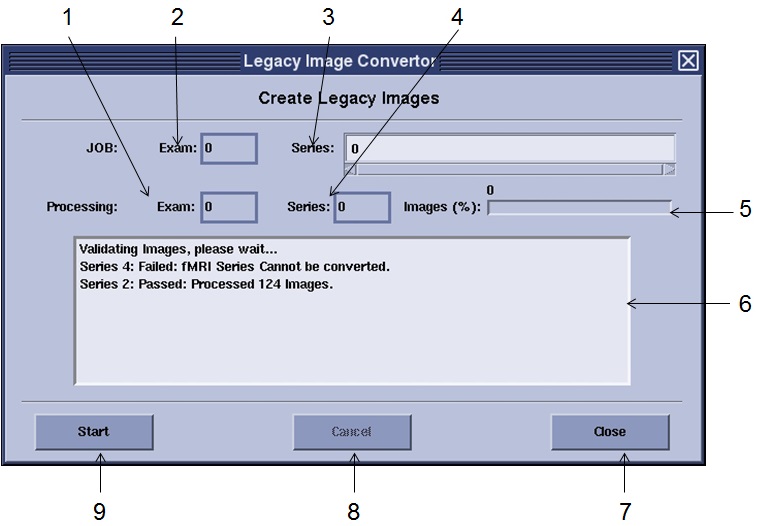
Figure 1. LIC screen
Table 1. LIC image legend
NumberDescription
1.Processing: Exam shows the Exam number being processed.
2.JOB: Exam shows the selected exam number for processing.
3.JOB: Series shows the list of series selected for conversion to legacy format.
4.Processing: Series shows the series number currently being processed.
5.Images (%) shows the percentage of images converted in the processing series.
6.Text Area: Displays the status of each series being converted.
7.Close closes the LIC application. This button is disabled when the Cancel button is available.
8.Cancel stops processing the current exam. Images already converted will remain available. This button is unavailable if the Start or Close buttons are available.
9.Start begins processing the selected exam/series in the browser window. This button is disabled when the Cancel button is available.

Use these steps to convert images on your MR system so that they can be displayed on a pre-11.0 MR system.

Step-by-step instructions

  1. In the header area, click the Tools icon arrow.
  2. Click Command Window... to open a command window.
  3. Type LIC and press Enter.
  4. From the Legacy Image Converter screen, select the exam and series for processing. The following image types are not supported and cannot be converted:
    • TRICKS, FIESTA-C, VIBRANT, PROPELLER
    • Raw data images (embedded Pfiles)
    • Legacy format images (these images are already in the correct format)
    • Foreign images (non-GE images)
    • GSPS objects
    • SR objects
  5. Click Start to begin image processing.
    • While images are being processed, you can click Cancel to stop the active conversion.
    • Once processing starts, a new exam with the same exam number is added to the Browser. As images are converted they will appear in the image browser under the newly created exam. (See Identifying Converted Images below for discriminating between the original and the legacy format exams.)
  6. Only one exam may be selected at a time and within this exam it will only process the selected series (more than one series can be entered). Therefore, to process more exams, return to step 4.
  7. When processing has completed the Cancel button will be disabled and the Start and Close button will become available.
  8. Review the message area for errors, then press the Close button on the LIC user interface. The LIC user interface screen will disappear.
    • The new exam is created using the same exam, series, and image numbering as the original. Legacy images can be identified by the annotation "Signa 1.5T SYS" rather than your system (for example SIGNA Voyager) when displayed in the viewer.
    • After networking the images to a pre-11.0 Lx scanner (e.g. 9.x, 10.x), the legacy format images can be identified by type "Advt" rather than "DICO" in the image browser.
  9. The converted images can be used with legacy system applications such as CV flow analysis on AW3.1. Once networked to either a Lx scanner (pre-11.0 versions) or an AW 3.1 or 4.0 workstation, the converted images can be further sent to Genesis (5.x) systems. (The unconverted 11.x-format images cannot be sent to a Genesis systems.)
    Table 2. Messages and error conditions
    ConditionMessage
    Successful ConversionThe following message is logged in the message box when conversion has completed successfully for each series being processed:

    "Series #: Passed: Processed xxx Images"

    Unsuccessful ConversionIf processing is attempted on a series containing unsupported image types, one of the following messages is displayed and no images are converted for that series.

    "Series #: Failed: Fiesta-c, Tricks, Vibrant etc series not Supported."

    "Series #: Failed: fMRI Series Cannot be converted."

    "Series #: Failed: Post Processed Images Cannot be converted."

    "Series #: Failed: Raw data Images Cannot be converted."

    "Series #: Failed: Monarch Images Cannot be converted."

    "Series #: Failed: Filtered (non-SCIC) Images Cannot be converted."

    "Series #: Failed: Legacy Images Cannot be converted."

    Other Error ConditionsIf multiple exams are selected from the Patient List and you click Start, the following error is displayed:

    "Multiple Exams Not Supported"

    Select a single exam, then select the series within the selected exam for processing. If multiple exams need to be converted, you must convert one exam at a time.

    If you click Start a second time without changing the selection in the Patient List, the following message is displayed (no image processing will occur):

    "Exam #: Failed: Already Converted/Rejected"

    This prevents accidental generation of multiple copies of the same image set. It is possible to close the LIC application and restart it to create a duplicate set of converted images.