

- 00000018WIA30A07870GYZ
- id_400231951.7
- Apr 20, 2022 9:15:32 AM
iLinq
The iLinq feature has two functions:
- For all sites, iLinq allows the user to collect and send anonymized data from the system to GE. GE engineers and applications specialists use the data to troubleshoot system problems.
- For sites that have an active service or application contract, iLinq also allows the user to communicate with an online engineer or applications specialist. InSite checkout must also be complete on the system.
Follow this procedure to use the iLinq feature.
- From the footer area of the system, click the
 .
. - In the iLinq window, select either Problem (default) or Question.
- If you select Problem, follow these steps:
- Complete the form with as much information as possible to explain your reason for contacting GE.
- Select the Yes radio button.
- Click Collect Data.
The system collects data to send to GE for analysis.
To stop this process, click Cancel.
- When the system finishes collecting data, click Proceed with the iLinq call.
Figure 1. Option 1: Problem 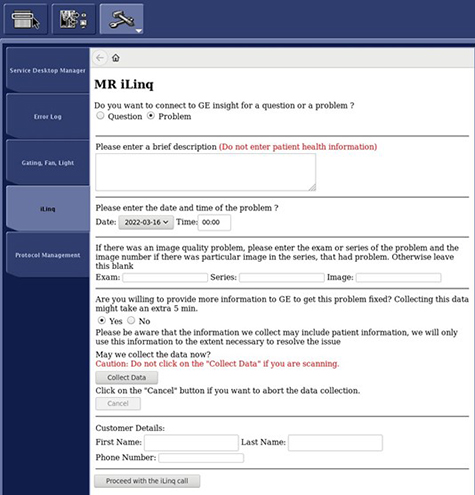
- If your site does not have the appropriate service or application contract, the system displays a message that states that connectivity cannot be established. The system has collected the problem data. If your site desires help with the problem, then a GE field engineer must manually retrieve the data and send it to GE for analysis.
- If your site has the appropriate service or application contract, go to Step 5.
- If you have a question and your site has the appropriate service or application contract, click Proceed with the iLinq call.
Figure 2. Option 2: Question 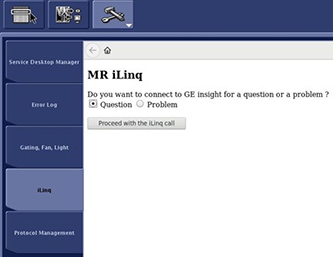
The system displays the Contact GE Form, with some pre-populated information.
- Complete the remaining fields on the Contact GE Form.
Figure 3. Contact GE page 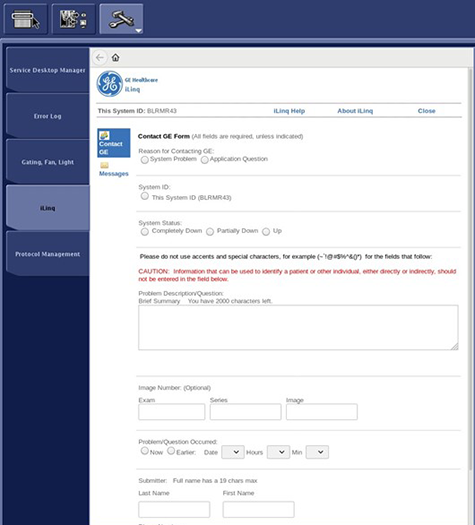
- From the top of the iLinq form, click Messages to confrm that GE received your message. Note the reference number.
- If your site has the appropriate service or application contract, follow these steps to view a message from GE:
- From the footer area of the screen, click the
 , which indicates a message is received from GE.
 - Click Messages to open the message window and view the response.
- Click the desired message check box to view the message content.
- To delete a message, click the check box next to the message that you want to delete, then click Delete.
- From the footer area of the screen, click the
- To view details about the iLinq application, from the menu bar, click About.
- To view the iLinq Help screen and iLinq icons, from the menu bar, click Help.