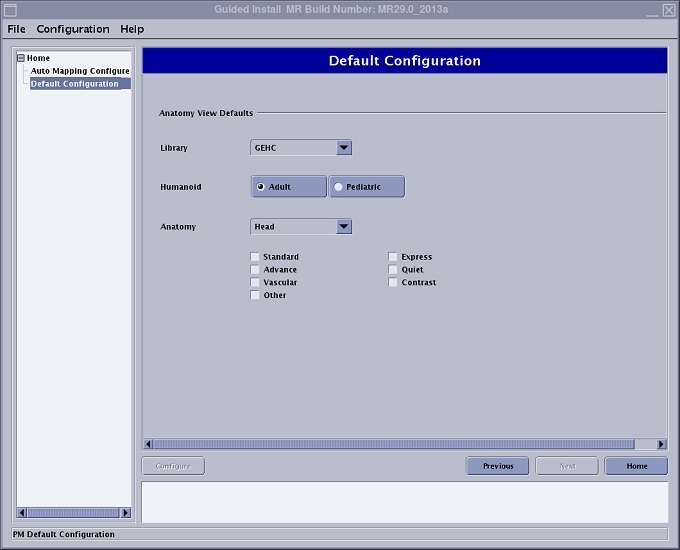
Use these steps to set the default protocol library, humanoid and to automatically have a set of filters applied by anatomical area.
Step-by-step instructions
Open Guided Install.
From the list of applications, click Protocol Manager.
Click Start to open the Default Configuration screen.
Confirm that Default Configuration is selected in the left panel. Figure 1. Default Configuration screen
From the Library menu, select an option, typically select your site library.
Click one of the options for Humanoid: Adult or Pediatric.
If desired, select an Anatomy area from the menu and then click the desired filters that you want to automatically be applied to that anatomical area. Repeat this action for each anatomical area.
Click Configure.
From the Guided Install menu bar, click File > Quit.