

- 00000018WIA30DA0970GYZ
- id_400245351.2
- Mar 9, 2022 6:31:54 PM
Save a protocol or a review step
About this task
Use these steps to save a review step or a protocol that is either new or modified.
Note: When you save a custom protocol with review steps from multiple software applications, the protocol is saved to each of these software application filters. For example, a scenario with READY View review steps and Reformat review steps, is saved to both READY View and Reformat filters.
Step-by-step instructions
- Click the
 located in the upper right corner of the screen to view the Figure 1.
 - Save your selections.
- If you are creating new scenarios, click Save.
- If you are modifying a scenario, click Update.
- Respond to any prompts.
Figure 1. Example of new protocol added to Protocol selection screen 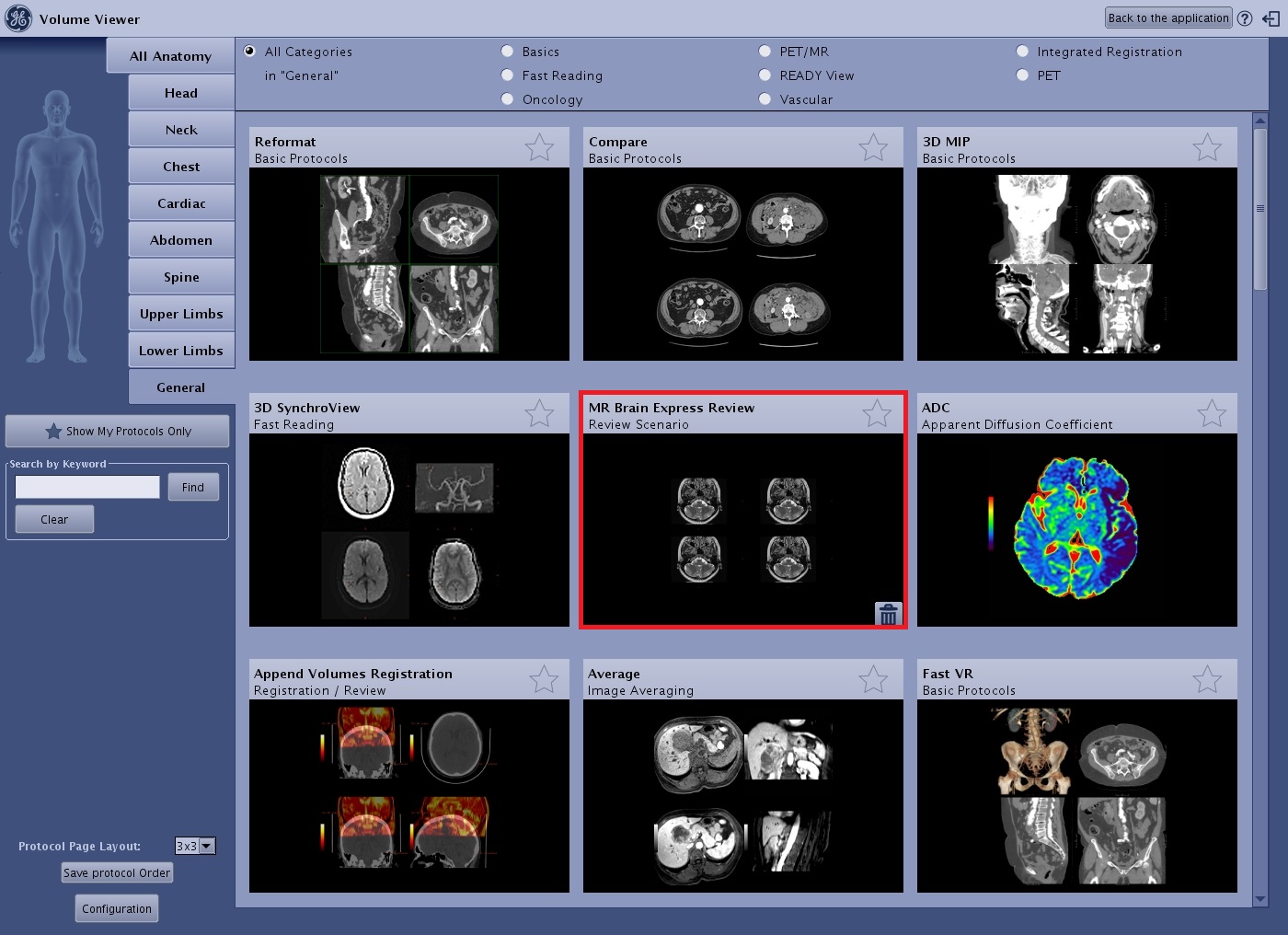
- If you rearrange a Review step in the title bar then click the
 to save the updated Review Step(s) to the protocol.
Figure 2. Review Steps title bar and Save Review Steps icon 
- If you clicked Save in the previous step, it is not necessary to click the Save Review Steps icon
Note: To deleted a protocol, see Delete a Protocol or Review Step procedure.