

- 00000018WIA30B5A970GYZ
- id_400231701.2
- Mar 9, 2022 6:09:46 PM
Change the order of the items in the Review Step list
About this task
Use these steps to add an item or change the order of the items in the Review Step list.
Step-by-step instructions
- Open the Volume Viewer.
- Method 1 to modify the Review Steps.
- From the top level area of the MR General Review screen, click the
 and select Review Manager from the menu to open the Review Manager screen.
Figure 1. Review Manager screen 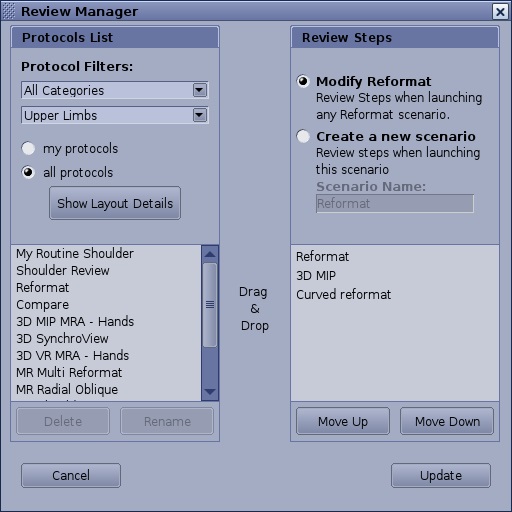
- From the Review Manager screen, click the Review Step you want to move.
- Click Move Up or click Move Down to change the location of the selected review step on the list.
- The Review Steps area of the MR General Review work area updates as you move the item on the list.
- Optional: if desired, click and drag an item from the Protocol List over the top of the existing protocol in the Review Steps list. You can only have seven items in the Review Steps list.
Figure 2. Click and drag the protocol to a location above the existing protocol 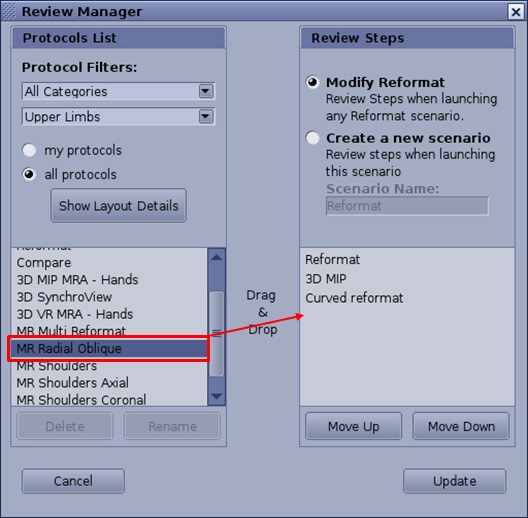
Figure 3. Protocol added to the list 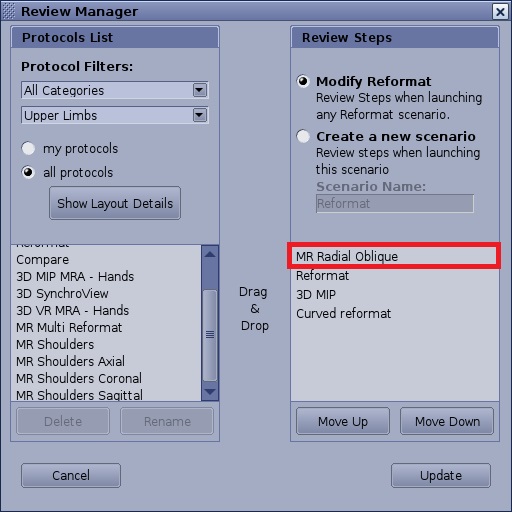
Figure 4. Example of error when you click and drag the protocol to the general area of the Review Steps 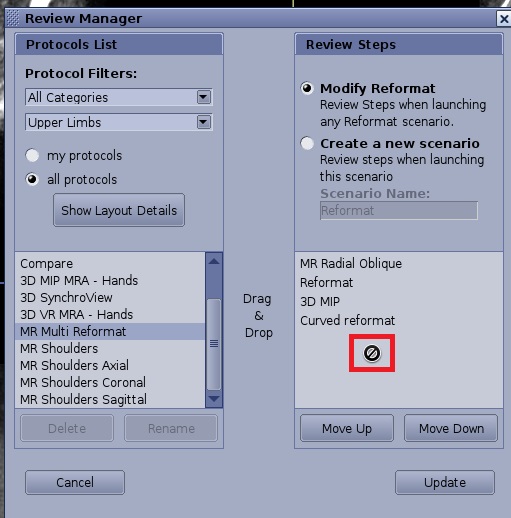
- Click Update to close the Review Manager screen.
- From the top level area of the MR General Review screen, click the
- Method 2 to modify the review steps.
- Place the cursor on a Review Step.
Figure 5. Selected Review Step 
- Click, drag and drop it to the new desired position.
Figure 6. New Review Step position 
- Place the cursor on a Review Step.