- 00000018WIA3026A970GYZ
- id_400262941.2
- Mar 9, 2022 6:13:03 PM
Change the order of the protocols on the Protocol Selection screen
About this task
Use these steps to change the order of the protocols on the Protocol Selection screen.
Step-by-step instructions
- Click the
 from the Review Steps area, to open/close the Add a Review Step screen.
 - From the Protocol Selection screen, click the protocol you want to rearrange.
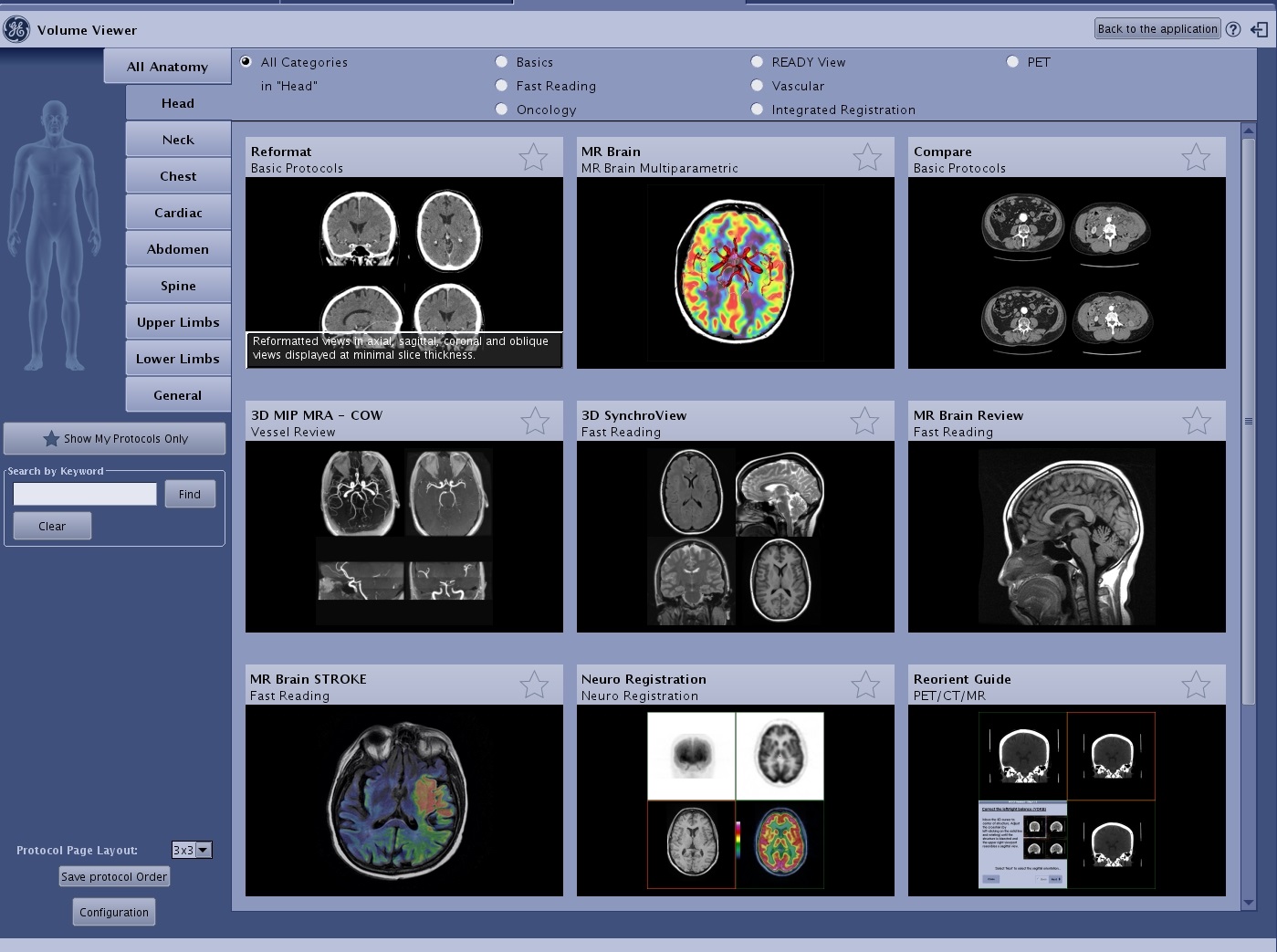
Figure 1. Protocol Selection screen 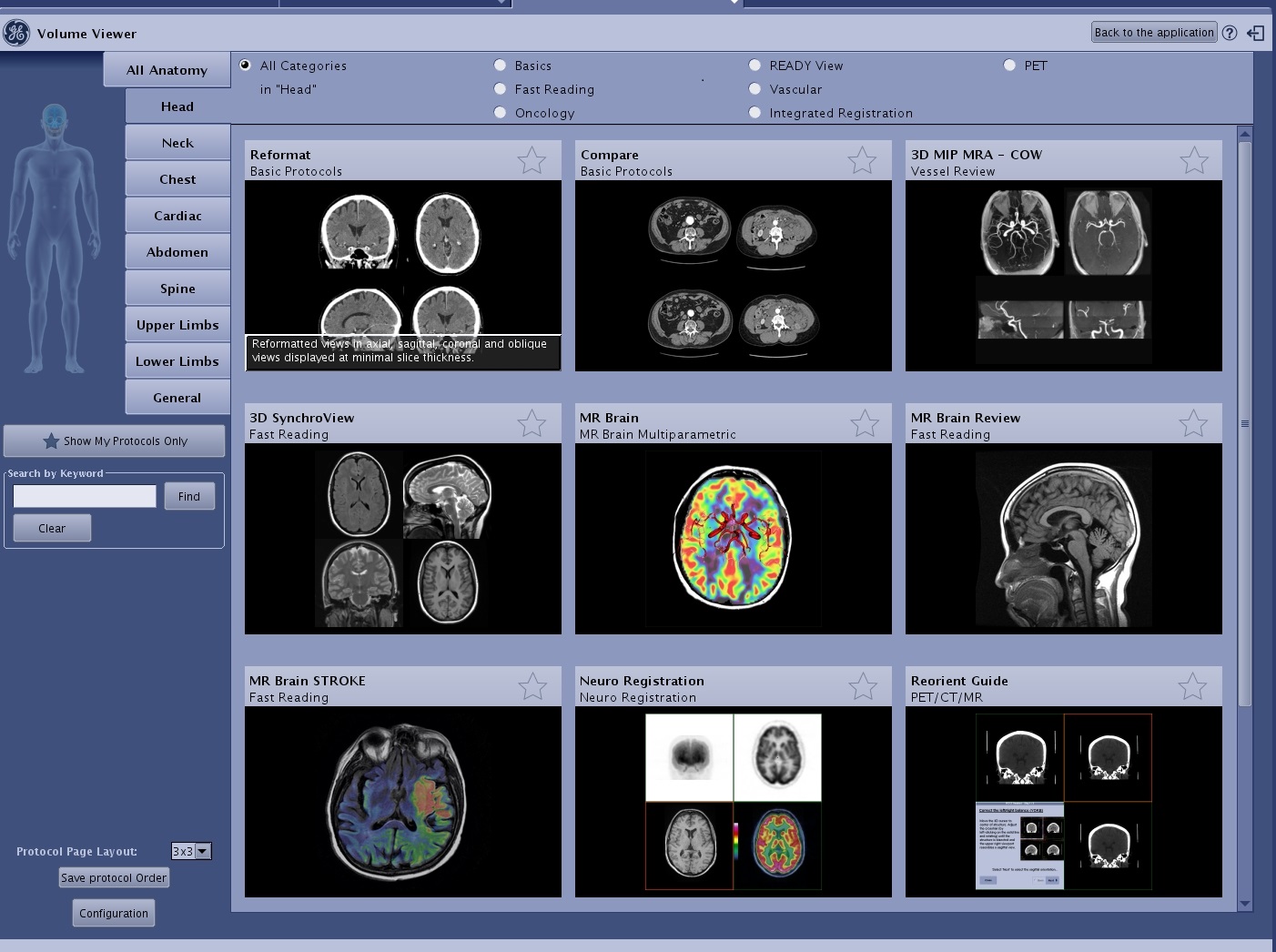
- If it’s a Favorite protocol, first must deselect the star on the protocol.
- Click the edge of the protocol and drag and drop it to the desired location.
Figure 2. Click edge of protocol 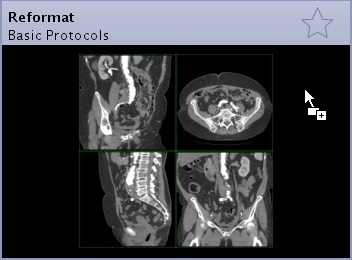
- You cannot drag and drop protocols when All Anatomy is selected. First select an anatomy category (Head, Neck, Chest Cardiac, Abdomen, etc.) to reorganize the protocols.
- In the lower left corner of the Protocol Selection screen, click Save protocol Order.
Figure 3. Save protocol Order 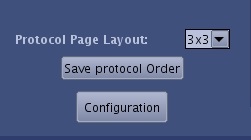
Figure 4. The Protocol Selection screen displays the new protocol order