
- Object ID: 00000018WIA30C60970GYZ
- Topic ID: id_40025170 Version: 1.3
- Date: Mar 29, 2022 11:33:55 AM
MR Standard workflow
About this task
Use these steps post process time course studies. Use MR Standard to analyze T1 or T2 contrast changes in the anatomy.
To change MR Standard settings, make a selection from the desired MR Standard screens.
Step-by-step instructions
- Open READY View and launch MR Standard protocol.
- Respond to the prompt that appears.
- When MR Standard launches, the source images and time/intensity curve display. The map viewports do not display an image map until the pre-post enhancement ranges are defined and computed. A message displays communicating this information. The image/graph displayed in each viewport is based on the selected protocol.
- MR Standard attempts to automatically determine the type of enhancement (Positive, i.e. T1 contrast, or Negative, i.e. T2* contrast) based on the PSD of the source images. If the sign cannot be determined, the type is set to "None" and you must manually change it to the desired setting before computing the maps. The Enhancement Type is set from the Advanced Settings selection area.
- Locate the desired images to view.
- For details, see Scroll through the images.
- Adjust the W/L and magnification.
- From the MR Standard screen, click and drag the left threshold slider until the anatomy is outlined in green and all the anatomy inside the image displays green lines.
- When using the Algorithm for Enhancement Integral maps, consider that changing the Lower Threshold results in a re-compute. Releasing the lower threshold slider at a chosen value automatically triggers the compute. Changes to the Higher Threshold does a dynamic update to the Functional Maps based on the threshold mask since a re-compute is not necessary.Note: Compute does not update the threshold. As the upper or lower slider is moved or a value entered in the text box, the threshold automatically updates.
- For processing threshold detail, see Threshold adjustment.
- When using the Algorithm for Enhancement Integral maps, consider that changing the Lower Threshold results in a re-compute. Releasing the lower threshold slider at a chosen value automatically triggers the compute. Changes to the Higher Threshold does a dynamic update to the Functional Maps based on the threshold mask since a re-compute is not necessary.
- To view a signal intensity/time curve from an ROI, complete the following steps:
- From the Measure/Annotate toolbar, click the 3D ROI icon (
). - Place the cursor in an image viewport and left-click to deposit the ROI.
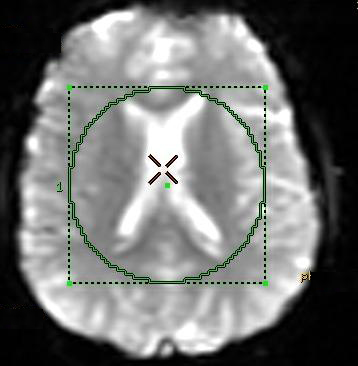
- Adjust the size and position of the ROI so that it is large enough to generalize the enhancement ranges across the volume. For more details, see Modify measurements.If needed, magnify the image by placing the cursor over the DFOV text in the upper left corner of the viewport and middle-click and drag to size the image.
Figure 1. Sample of large ROI positioned over anatomy 
- From the Measure/Annotate toolbar, click the 3D ROI icon (
- From the MR Standard screen, click the Pre & Post Enhancement Images arrow and complete the following steps.
- The pre- and post-enhancement image numbers determine how the images will be processed. The actual image range that is used by the algorithm in the computation of the maps extends between the last pre-enhancement image and the first post-enhancement image. Use the sliders on the panel together with the curves on the graph view to set the pre- and post-enhancement image ranges.
- The pre- and post-enhancement image ranges are used by the software to define a baseline.
- The pre- and post-enhancement image ranges are defined as the ranges from first to last pre-enhancement image and first to last post-enhancement image, respectively.
- First set the post-enhancement range. Click and drag the post-enhancement slider to define the range that should start at the point where signal recovery has peaked and should end before contrast recirculation begins.
Figure 2. Range that defines post-enhancement - Next, set the pre-enhancement range. Click and drag the pre-enhancement slider to define the range that should end at the point of bolus arrival and should begin at a steady-state point before bolus arrival.
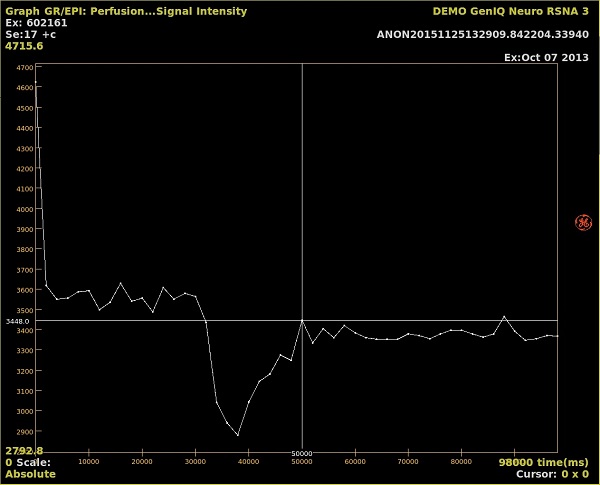
Figure 3. Range that defines pre-enhancement - From the MR Standard settings screen, click Compute to update the maps.
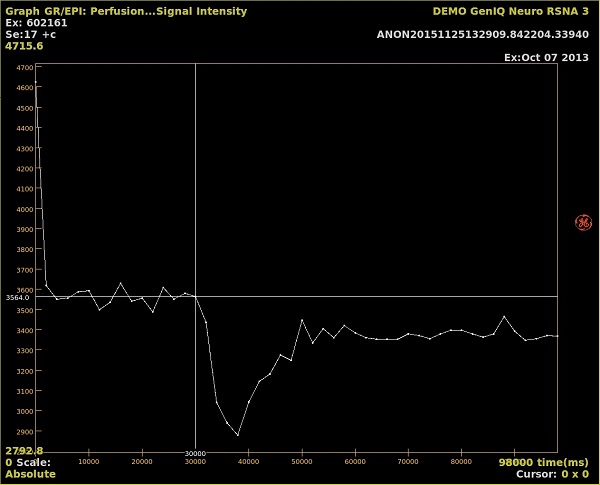
- First set the post-enhancement range. Click and drag the post-enhancement slider to define the range that should start at the point where signal recovery has peaked and should end before contrast recirculation begins.
- Ensure that the enhancement ranges are set correctly before computing functional maps in the MR standard protocol.
- Ensure that the enhancement sign is set to be consistent with the temporal characteristics of the selected images before computing functional maps.
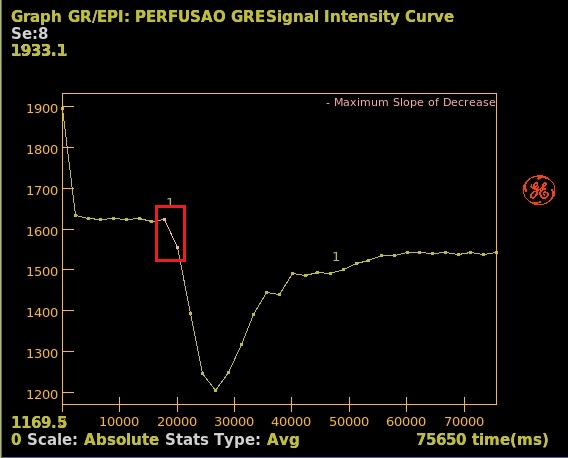
- To view a functional curve, place the cursor in the graph view and right-click Select Displayed Curves and make a selection from the menu. A Functional curve is integrated into the curve.
Figure 4. Example of a Maximum Slope of Decrease Functional curve - note the identified section integrated into the curve 
- From the MR Standard screen, click the Clip Min & Max values arrow and modify the minimum and maximum values for a selected parametric image.For details, see Set Clip Min & Max threshold values.
- From the MR Standard screen title bar, click the Tools icon (
). - From the MR Standard screen, click the MR Standard - Advanced Settings arrow and select Constant or Interpolated base for integration or change the Kernel Spatial Smoothing.
- Enhancement Type Positive represents T1 contrast and Negative represents T2* contrast, which is based on the PSD of the source images. If the sign cannot be determined by the system, the type is set to None. It must be changed to either Positive or Negative before computing the maps. Select Negative when the curve dips down for the enhancement range and select Positivewhen the curve ascends for the enhancement range.
- The calculations take into account the background intensity (baseline). You can use a Constant baseline computed from the average pixel value prior to the intensity transient (pre-enhancement images), or you can correct for the change (drift) of the background intensity over time by using a baseline Interpolated between the pre-enhancement and post-enhancement pixel values.
- The Kernel spatial smoothing default value is 0. As the kernel size increases, voxel averaging occurs and the image maps appear smoother.
- Change the desired settings.
- Click Compute to generate updated maps.
- Reset changes the selections to the factory default values.
- Save All changes and saves your selections as the new default values.
- From the MR Standard screen, click the MR Standard - Final Settings arrow and review the settings. If you want to change any of the settings, click the appropriate selection from the MR Standard screen. Check the Enhancement Type and ensure that it corresponds to the shape of the ROI curve. If it does not match, change the Enhancement Type from the Advanced Settings selection area. Click Compute to generate updated maps.
- To exit READY View, click the Exit icon (
).
