

- 00000018WIA30E2E770GYZ
- id_400260021.2
- Jan 31, 2022 3:51:05 PM
Film queue
About this task
Use these steps to view the Film Composer backlog.
Step-by-step instructions
- From the Film Composer, click Queue.
Figure 1. Film Composer 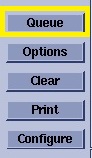
- From the Filming queue screen, make selections.
Figure 2. Filming queue screen 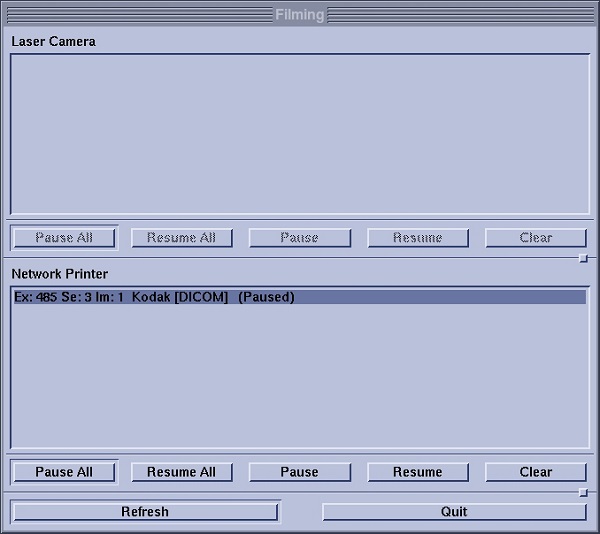
- The Camera Name area displays current jobs in the main camera.
- The Network Name area displays current jobs to any remote cameras.
- Select one or more jobs and click Pause to pause the selected job in the queue. The word Pause appears after the selected job name.
- Click Pause All to temporarily pause all jobs in the queue. The word Pause appears after each job.
- Select one or more jobs and click Resume to restart a selected paused job in the queue. The word Active or Pending appears after the selected job name.
- Click Refresh to update the queue and display the current status of the jobs.