

- 00000018WIA30D1C970GYZ
- id_400225161.2
- Jan 31, 2022 2:21:21 PM
Network history
About this task
Use these steps to view the jobs that have been transferred.
Step-by-step instructions
- From the header area of the screen, click the
 to open the Image Management work area.
 - From the Image Management work area, click the
 .
. - From the Job Management screen, click the Network History tab.
Figure 1. Network History tab 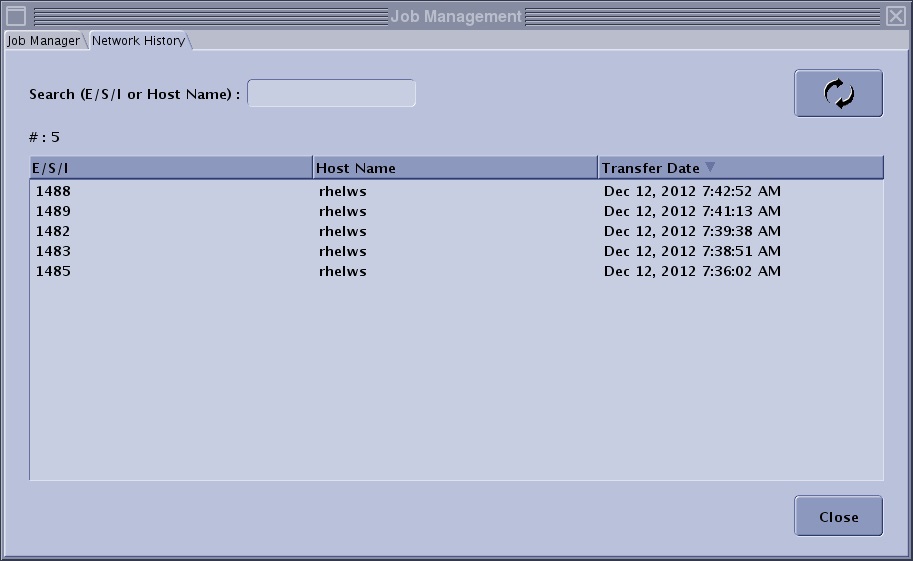
- Type a specific host name or exam/series/image number into the Search ESI or Host field.
- The history file displays for all matches to the exam/series/images you typed in.
- The history list automatically updates as you enter each character.
Figure 2. In this example, as soon as t was typed, the list was modified to display all hosts starting with t 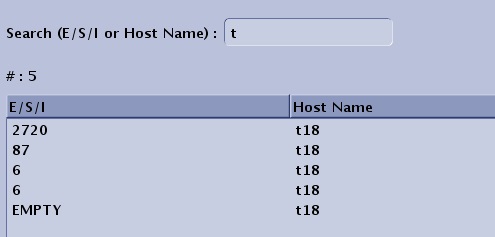
- Click the
 to update the network history log.