About this task
Use these steps to cut, copy, paste, duplicate, move or rename series in the workflow manager.Step-by-step instructions
- Select the active scan session tab.
- From the workflow manager, click the Task tab.
- To duplicate one or more series and setup in a single click, follow these steps.
- Select the series (single or multiple) you want to duplicate.
- If there are multiple series, press Shift and simultaneously click the first and last slice of a contiguous list or press Ctrl and simultaneously click each series individually.
- The series you want to copy displays a yellow background.
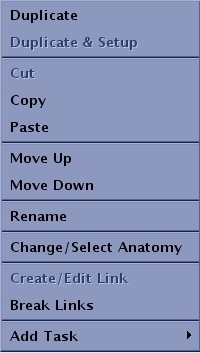
- Place the cursor on the series in the task list and right-click and select Duplicate or Duplicate & Setup.
- Duplicate option allows you to copy and paste single or multiple tasks with one mouse click.
- Duplicate & Setup option allows you to copy and paste a single task and then places that task in the INRX state with a single mouse click. Therefore, it is not necessary to click Setup.
- To remove or cut a series from the workflow manager, follow these steps.
- Select the series you want to cut.
- If there are multiple series, press Shift and simultaneously click the first and last slice of a contiguous list or press Ctrl and simultaneously click each series individually.
- All of the series you want to cut display a yellow background.
- From the task menu bar, click .
You can also place the cursor in the task list and right-click to open the Edit menu.
- To rename a task in the workflow manager, follow these steps.
- In the workflow manager, select a single scan task that is InRX, RxD, or not in a state.
The scan task cannot be in a Done or ACT states.
- Right-click to open the Edit menu.
- From the Edit menu, click Rename.
A blinking cursor appears in the task text field.
- Select the text and press Delete.
You can also press Backspace.
- Type a new name and press Enter.