Use these steps to use the Stop Watch to monitor timed scans such as CEMRA acquisitions. The Stop Watch window floats on top of all desktops so that you can see it at all times until it is closed.
Step-by-step instructions
From the screen footer area, click the to open the Stop Watch screen.
Figure 1. Stop Watch maximized screen
Each time the stop watch is opened, it opens in the location and size when it was last closed.
Click and drag the window edges or corners to resize it.
Select Up or Down.
Up counts from zero to the set time once the Start button is clicked. If no time is set, it counts up in a free running mode.
Down counts from the set time to zero once the Start button is clicked.
Select the text in the minutes field and type a new value.
Select the text in the seconds field and type a new value.
Once the time is successfully entered in the text fields, the Time Set field updates.
Optional: Click the [+] icon to expand the window and turn on an alarm. Select Auditory and/or Visual Flash and enter a time for the alarm to be active.
Time Set is a display field only. It is provided so that once the stop watch is counting up or down, you know the time from which you started counting down or the target time to which you are counting up.
Auditory produces a beeping sound every second.
Visual Flash produces a flashing effect by alternating the time label between a normal and inverted state. It produces this flashing effect every second.
Click Start to begin the count.
Click the [-] icon to change the window back to a smaller display.
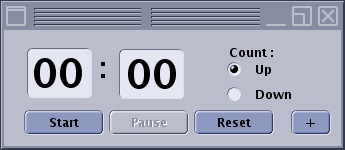
Figure 2. Stop Watch minimized screen
Note: When the Stop Watch is closed, it continues to count up/down.


 to open the Stop Watch screen.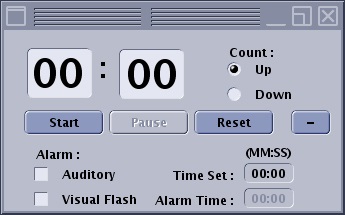
 Note: When the Stop Watch is closed, it continues to count up/down.