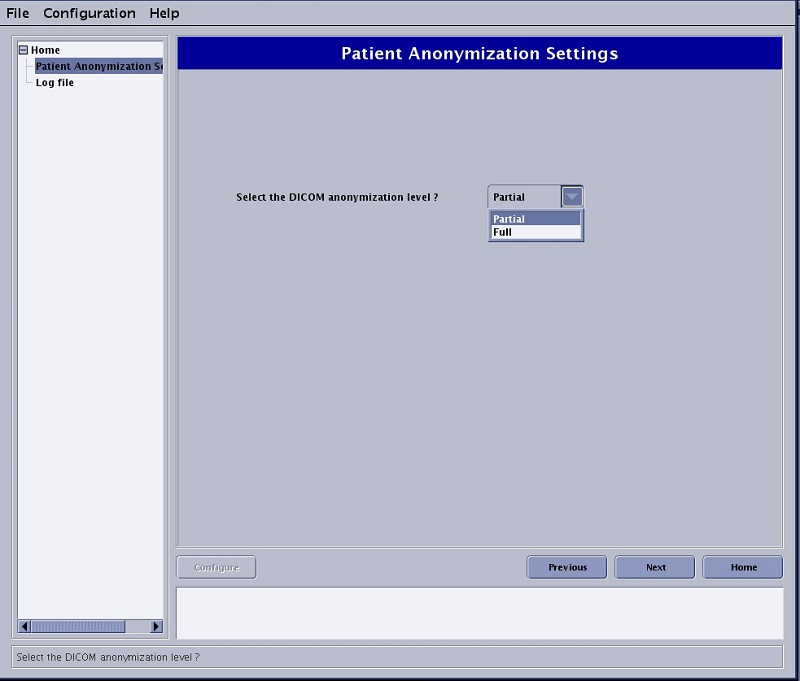
There are two selections: Full and Partial. For details on each selection, see Patient anonymize introduction. Figure 2. Anonymize menu
Configure
Applies the selections made from the Guided Install screen.
Previous and Next
Moves between Guided Install panels.
Home
Displays the Guided Install Home page.
Use these steps to change the level of anonymizing patient information.
Step-by-step instructions
Open Guided Install.
From the list of applications, click Anonymization Settings.
Click Start to open the Anonymize Settings screen.
In the left portion of the Guided Install screen, click Patient Anonymization Settings.
Select Partial or Full from the menu.
Click Configure.
The Configure button only becomes available when you change the Anonymize setting from the selection that is displayed when you first entered the window.
The anonymization setting displayed in the menu is activated once you click Configure.
Click OK.
You do not have to reboot to activate the new anonymization mode.
From the Guided Install screen menu bar, click File > Quit.