About this task
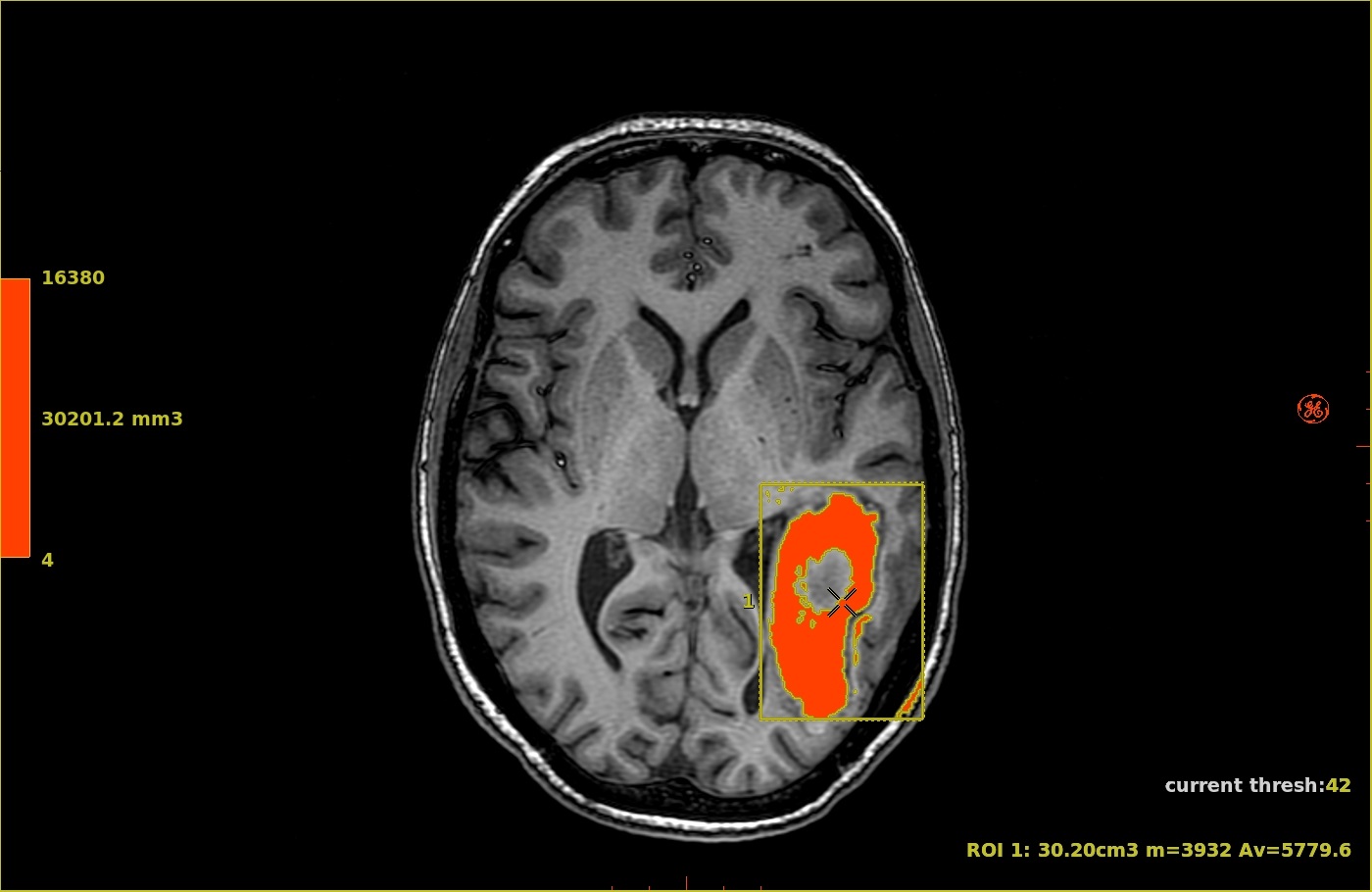
Use these steps to colors pixels on a deposited 3D ROI.Step-by-step instructions
- Open the MR General Review.
- Deposit a 3D ROI.
- The 3D Color ROI is available in one color for MR images.
- To modify the ROI, see Modify measurements. Figure 1. Image with 3D ROI deposited
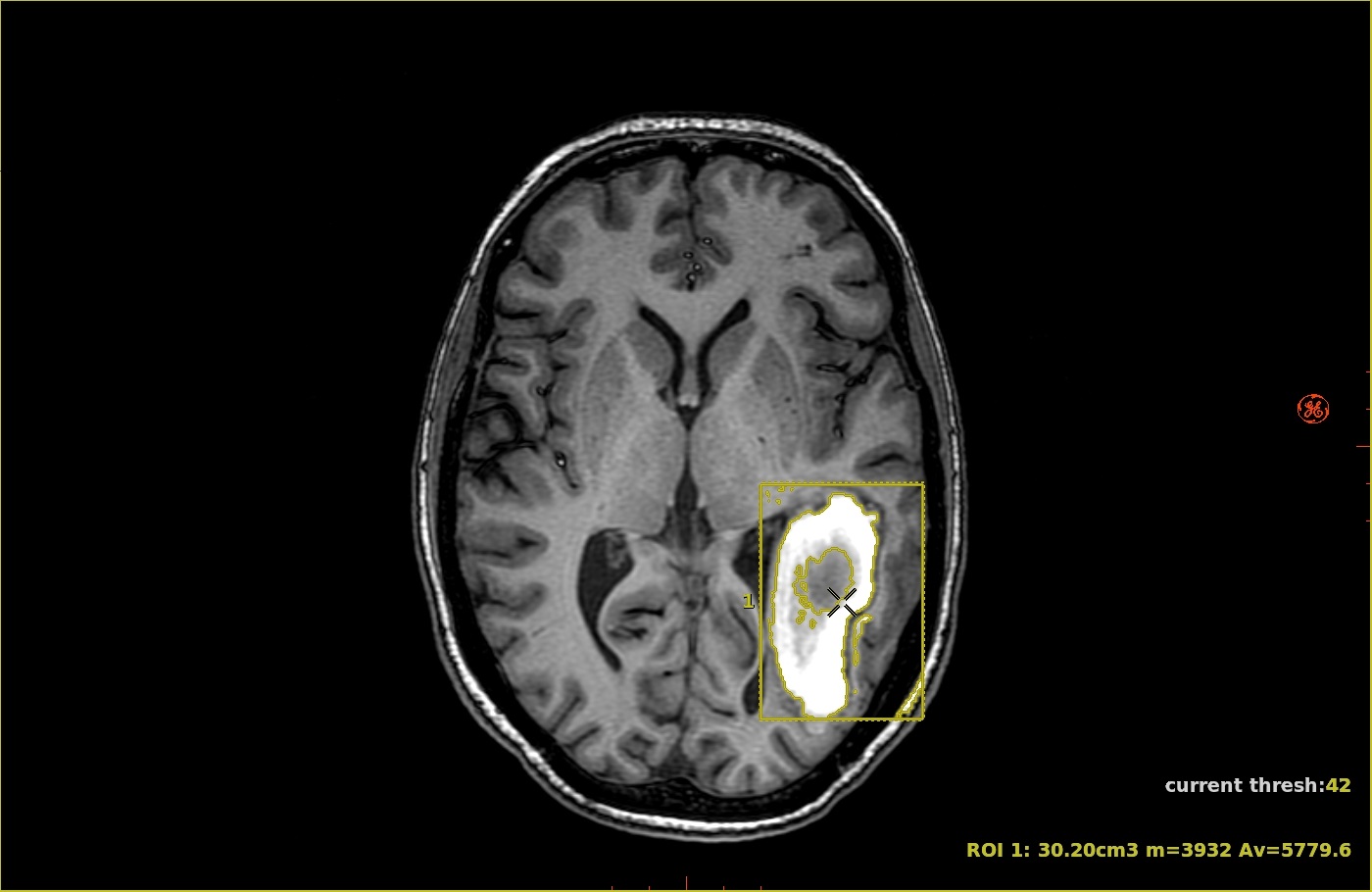
- Right-click the ROI and select Color coded display: Activate.
Figure 2. Colors match the corresponding color ramp
- To manage the color map, follow these steps.
- Left or right-click the ROI color map to view the menu.
- Click Add Segment to add a new color above the one pointed to by the cursor.
- Click Remove Segment to remove the color segment point to by the cursor.
- Click Color to select the color from the list of colors.
- Click Presets to select a predefined color map or Save/Delete a user color map preset.
- To view the summary table, from the Export toolbar, click the Summary Table icon (
 ).
).