About this task
Use these steps to change a VR structure’s opacity based on an interactive histogram.Step-by-step instructions
- Open the MR General Review.
- From the Visualization Toolbar, click the Advanced VR Settings icon (
 ) to view the VR Controls screen.
 - From the VR Controls screen, click the Advanced tab, and follow these steps.
- On the Advanced VR Settings Help screen, click a link to view procedure details.
- Click the X in the help screen upper right corner to close the Advanced VR Settings Help screen.
- To see through an object, click and drag the upper cursor up/down.
- To decrease background noise, increase the value of the lower threshold.
- To increase visualization of soft tissue structures, decrease the value of the lower threshold.
Figure 1. VR Controls screen, Advanced tab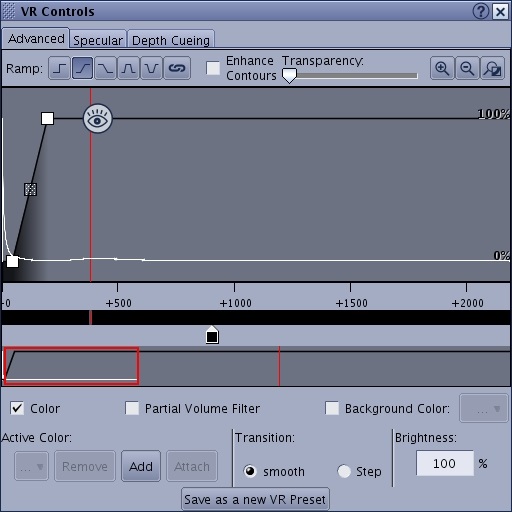
- From the VR Controls screen, click the Specular tab, and follow these steps.
- Adjust the slider bars to modify the appearance of the VR image.
Figure 2. VR Controls screen, Specular tab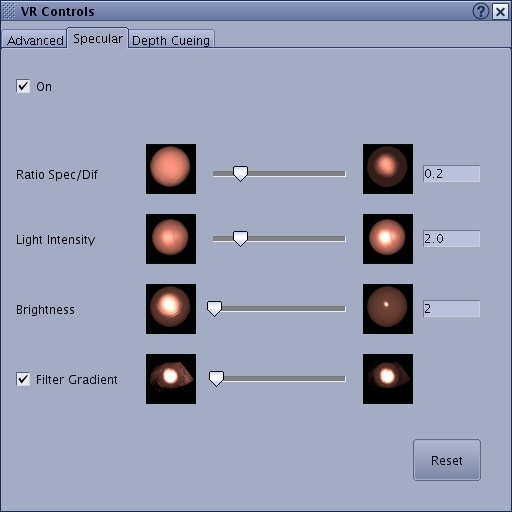
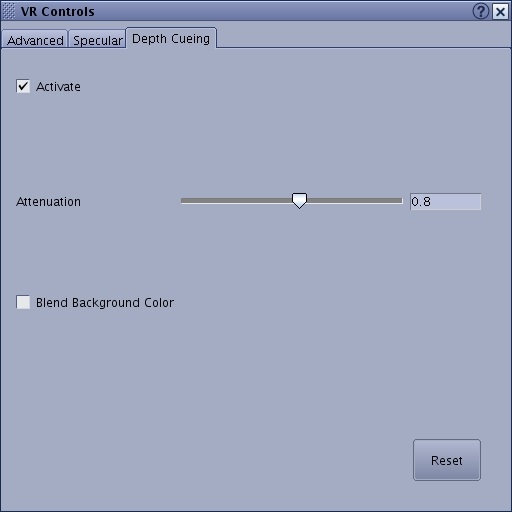
- From the VR Controls screen, click the Depth Cueing tab, and follow these steps.
- Adjust the Attenuation slider bar to modify the depth cueing appearance of the VR image.
Figure 3. VR Controls screen, Depth Cueing tab