- 00000018WIA3074F770GYZ
- id_400262191.3
- Mar 29, 2022 1:47:26 PM
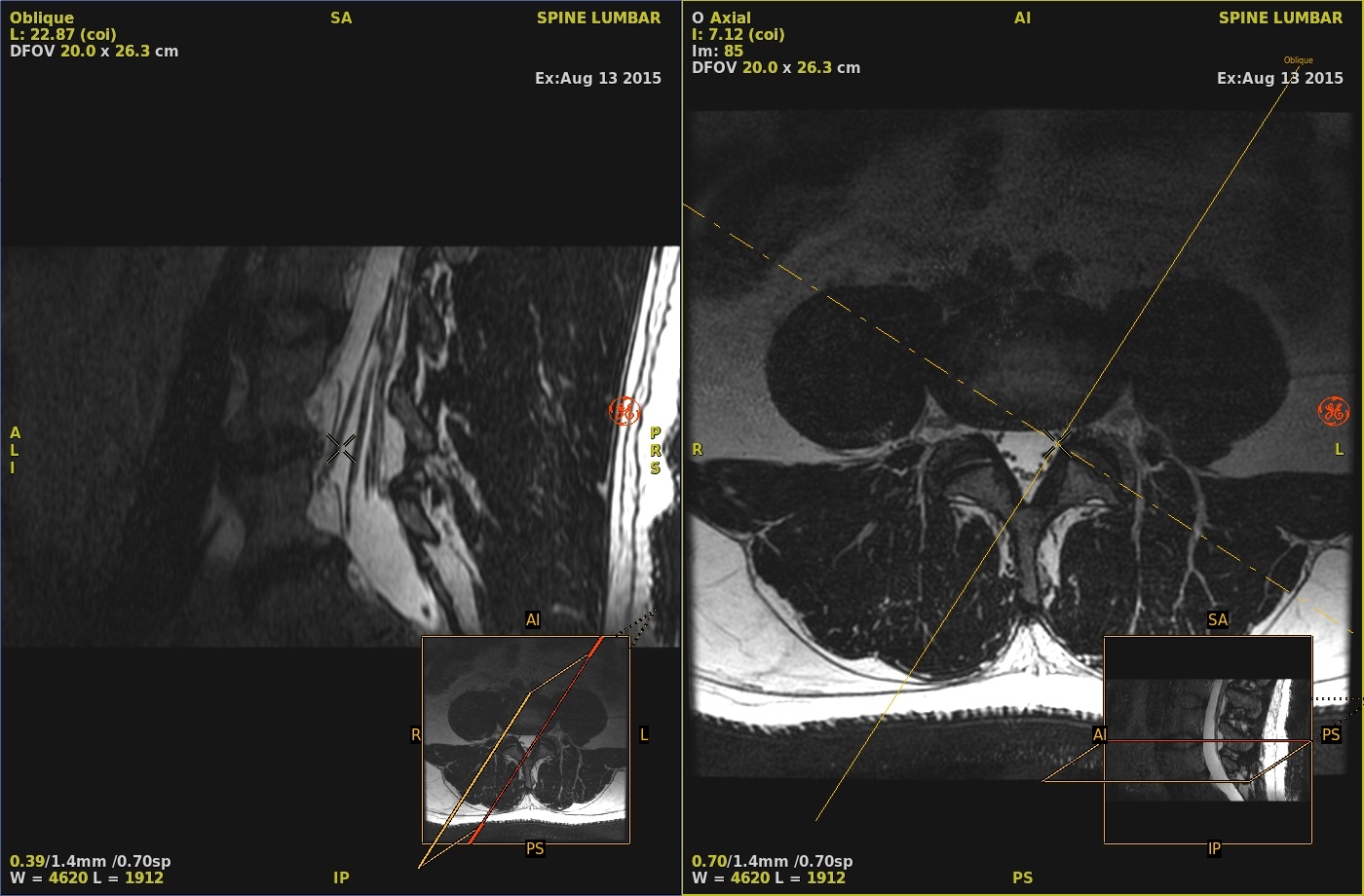
Generate a simple oblique image
About this task
Use these steps to displays a line cursor in oblique views that is used to define a new plane.
Step-by-step instructions
- From the Visualization Toolbar, click the Simple Oblique icon (
 ).
).Result
A solid yellow line appears which represents the plane of the Oblique reformat. - Select the intersecting lines to move the center of the rotation.
Figure 1. Single-oblique lines