

- 00000018WIA30556970GYZ
- id_400262771.2
- May 10, 2022 2:16:44 AM
PC: Self-Cal Phase Contrast
SCPC is an in-line post-processing task that reduces the residual phase error in 2D flow measurements. It uses non-linear fitting image-based algorithm. SCPC is intended to be used only in the vasculature around the heart.
SCPC automatically corrects phase-contrast images from background phase error for MR flow imaging. It uses areas in the image that are known to have zero velocity. The task also alerts the user to conditions when the method fails, and advices the user how to re-scan so that the feature works correctly.
Acquisition considerations with SCPC
- SCPC can only be used as a post process task with the following scan selections:
- 2D Mode, Vascular family, Fast 2D Phase Contrast pulse. The following Imaging Options are compatible with SCPC:
- ASSET, which must be selected. If not, an error message displays informing you to rescan with ASSET enabled.
- Flow Compensation
- Respiratory Gating/Triggering
- Sequential
- ZIP 512, typically do not select ZIP 512 because processing time might become significantly longer.
- SCPC is only compatible if Chest is selected as the Anatomical Region.
Figure 1. Anatomic Region area from the Set Anatomy screen 
- SCPC only supports 1 slice per series. If 2 or more slices are prescribed in one series, the following error message will appear: Only one slice is supported by Phase Correction. Change number of Slices to ‘1’.
- From the Vascular tab, make these selections.
Figure 2. Vascular tab 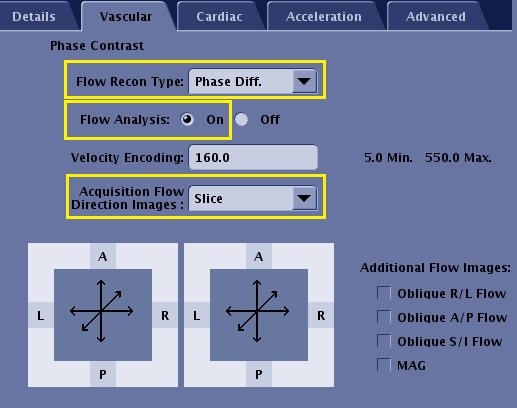
- SCPC is only compatible if Chest is selected as the Anatomical Region.
- Flow Recon Type = Phase Diff
- Flow Analysis = On
- If Oblique is selected from Scan Plane scan parameter, then Acquisition Flow Direction Images = Slice.
Figure 3. The flow direction must be perpendicular to the scan plane 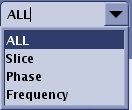
- If an Axial, Sagittal or Coronal plane is selected from Scan Plane scan parameter, Acquisition Flow Direction Images = a scan plane perpendicular to the flow direction
- If Scan Plane is Sagittal, select direction R/L
- If scan plane is Coronal, select direction A/P
- If scan plane is Axial, select direction S/I
Figure 4. The flow direction must be perpendicular to the scan plane 
- From the Cardiac tab, if the # Phases to Reconstruct > 30, SCPC processing time could become significantly longer.
Figure 5. Cardiac tab 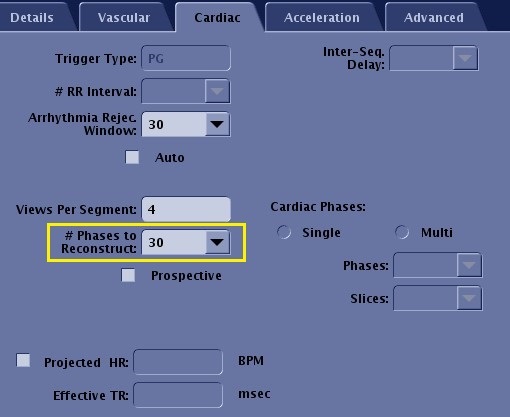
- From the Acceleration tab select 1-2.
Figure 6. Acceleration tab 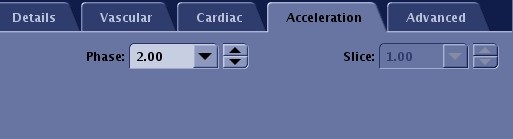
- From the Advanced tab, select 0.0 for CV2 (Use Magnitude Weighting Mask). If it is set to 1.0, SCPC fails and an error message appears.
Figure 7. Advanced tab 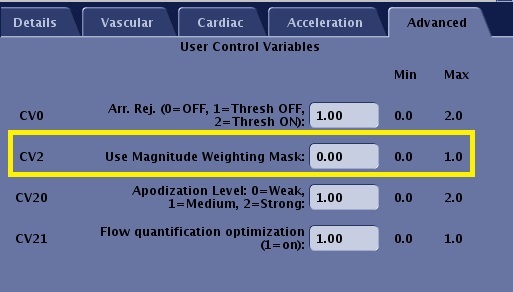
- SCPC status messages appear in the task list. To view the message, move the cursor over Err (error) or Inv (invalid) text that appears in the Status column of the Task Manager.
Figure 8. Task Manager information area 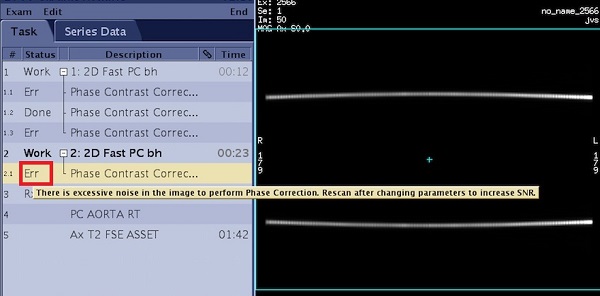
Table 1. SCPC messages Status column Message displayed in Task Manager Action Inv Only one slice is supported by Phase Correction. Change number of Slices to '1'. Change number of Slices to 1. Err ASSET must be used for Phase Correction. Rescan with ASSET enabled in Imaging Options. - Select ASSET from Imaging Options screen.
- Rescan.
Err CV2, the indicator for Magnitude Weighing Mask, must be set to 0.00. Rescan with the CV2 set to 0.00 under the Advanced tab. - From the menu, select Phase Difference.
- From the Advanced tab, set CV2 to 0.00.
- Rescan .
Err The flow direction must be perpendicular to the scan plane. Check the Acquisition Flow Direction Images under the Vascular tab. Rescan with a flow direction perpendicular to the scan plane. - From the menu, set the value so that the flow direction is perpendicular to the scan plane.
- Rescan.
Inv Acquisition must be multi-phase. From the , enter the 30. Inv Mode must be set to ‘2D’ for Phase Correction. Change Mode to ‘2D’ in Imaging Options. From the menu, change the Mode to 2D. 
Done NoCorrNeeded Background phase is sufficiently small and no correction is needed. No correction was performed. Err Velocity images show inadequate quality to perform the Phase correction. Rescan after modifying one or more of the following parameters: increasing VENC, decreasing BW and/or decreasing matrix size. - Change the prescription increase the VENC, decrease BW and/or decrease matrix size.
- Repeat the scan.
Err The area containing static tissue is too small. Rescan after modifying one or more of the following parameters: increasing or rotating the FOV, decreasing BW and/or decreasing matrix size. - Change the prescription to include more static tissue. For example, increase or rotate the Field-of-View, decrease the BW and/or decrease the matrix.
- Repeat the scan.
Err/Inv Only Fast 2D Phase Contrast scanning is supported by Phase Correction. Check 1) Flow Analysis is ‘On’ under Vascular tab, and 2) Flow Recon Type is ‘Phase Diff.’ under the Vascular tab, and 3) Sequential mode is selected in Imaging Options - Check the following from the Vascular tab:
- Flow Analysis option box = On
- Flow Recon Type = Phase Diff
- Check the following from the Imaging Options screen:
- Sequential mode is selected
Err Phase Correction has failed. Perform alternative correction method. Perform alternative correction method.
- From the Cardiac tab, if the # Phases to Reconstruct > 30, SCPC processing time could become significantly longer.
- 2D Mode, Vascular family, Fast 2D Phase Contrast pulse. The following Imaging Options are compatible with SCPC: