
• Object ID: 00000018WIA3074F770GYZ
  • Topic ID: id_40026219 Version: 1.3
  • Date: Mar 29, 2022 1:47:26 PM

Generate a simple oblique image

About this task

Use these steps to displays a line cursor in oblique views that is used to define a new plane.

Step-by-step instructions

  1. From the Patient List/Browser, select a series that you want to reformat.
  2. Open a MR General Review application.
  3. If needed, click the View Type active annotation in the upper left corner and select Oblique.
  4. Click another viewport to make it the primary viewport.
  5. From the Visualization Toolbar, click the Simple Oblique icon ( ).

    Result

    A solid yellow line appears which represents the plane of the Oblique reformat.
  6. Select the intersecting lines to move the center of the rotation.
    Figure 1. Single-oblique lines
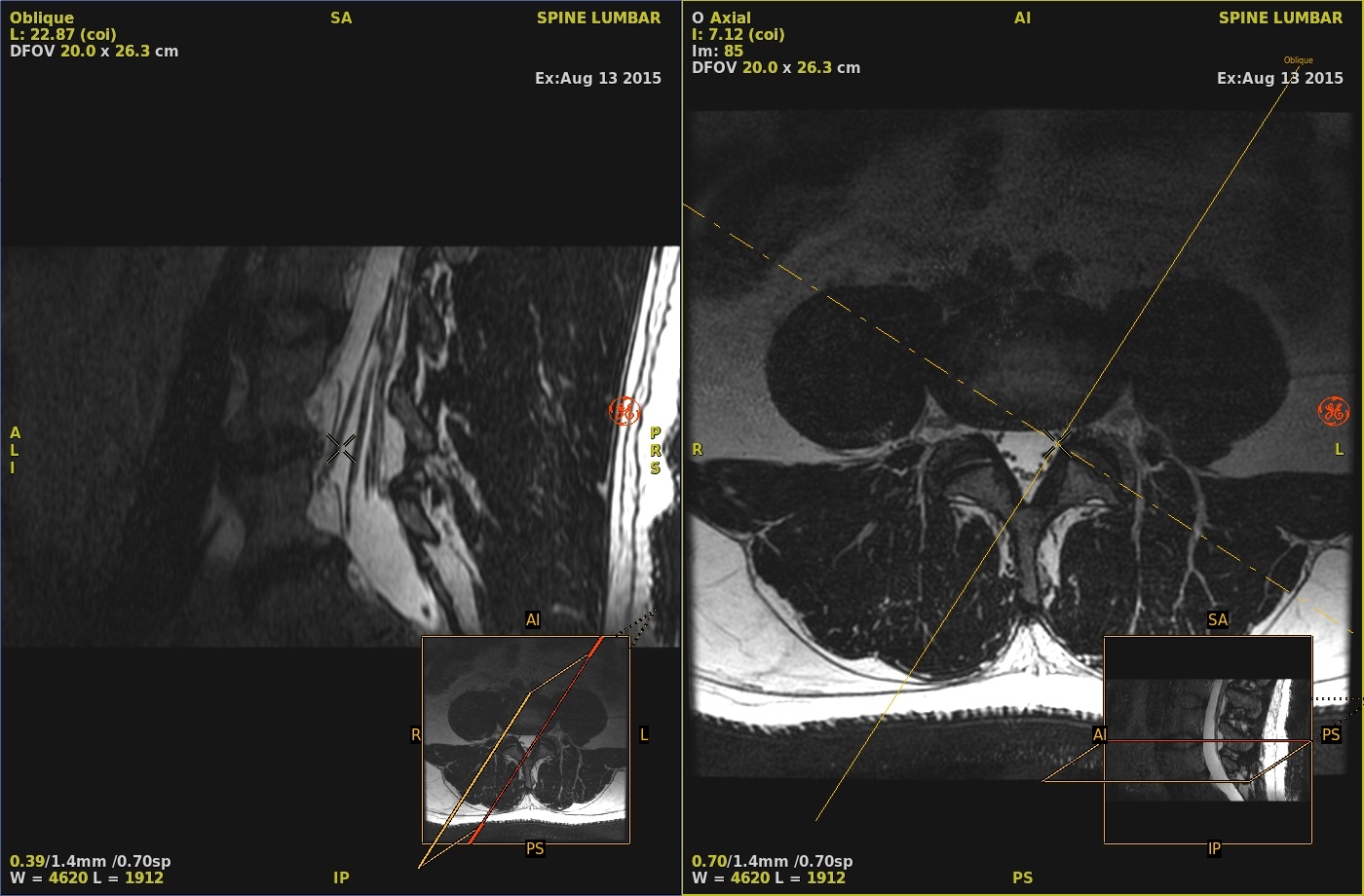
  7. Place the cursor on the solid yellow line and click and drag to tilt the yellow line to display the desired plane.
  8. Click the Simple Oblique icon again to de-activate the mode.