From the upper right corner of the screen, click the menu.
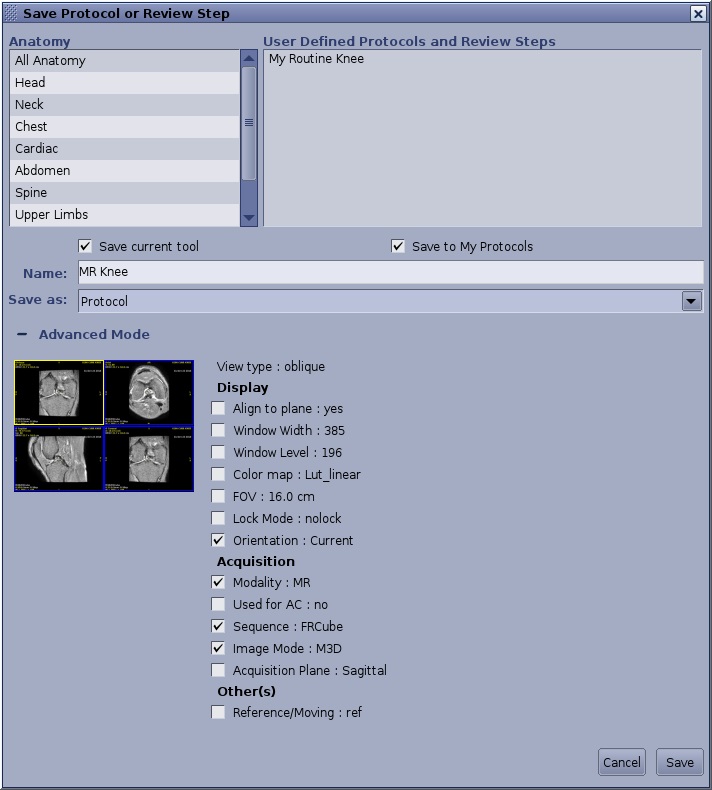
Click the Save layout option to view the Save Protocol or Review Step screen.
Figure 1. Save Protocol or Review Step screen
From the Save Protocol or Review Step screen, follow these steps.
Enter a name in the Name text field, for example, Final Review.
Define all other parameters on the screen.
From the Save as menu, define it as a Protocol or a Review step.
Select either the Save current tool or the Save to My Protocols option.
Save current tool allows you to save a modified list of review steps, for example if you add Reformat to the list, you can save the new modified list with Reformat as one of the review steps.
Save to My Protocols makes the protocol a Favorite and thus a star icon displays on the top right corner of the protocol on the protocol page.
Click Advance Mode + to view other options. Complete as needed.
Click Save when all fields are completed.
The Final Review step is added to the Review Steps navigation bar if it is saved as a Review step.


 menu.
menu.