About this task Use these steps to open a Service Desktop Manager session.
Step-by-step instructions In the header area, click the Click the Service Desktop Manager tab to view the Service Desktop Manager screen.
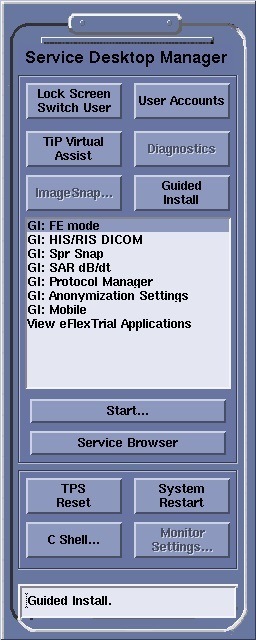
Figure 1. Example of Service Desktop Manager screen Make a selection.
Lock Screen Switch User is used to switch to a new user and requires a log in. User Accounts is used to log into Data Privacy. TiP Virtual Assistant provides live, on-demand support.Diagnostics is for service only, and thus unavailable.ImageSnap is for service only, and thus unavailable.Guided Install displays the list of Guided Install applications. Start initiates a Guided Install application. Service Browser opens the MR Service Desktop. TPS Reset is used when instructed by either a system message or an InSite technician. C Shell is used to open a command line window that allows command line entries. Typically this is only for service and researchers. Only MR users that have been assigned to the LinuxShellGroup by the site administrator will be able to enter information on the Command line window.System Restart restarts the system. Monitor Settings is for service only, and thus unavailable. 

 to open the System Management work area.