About this task
Use these steps to activate TVA for receiving live-on-demand support to troubleshoot system performance.Step-by-step instructions
- Open the Service Desktop Manager.
- From the Service Desktop Manager, click TiP Virtual Assist.
- From the Remote Control screen, click Accept to view the Remote training screen and connect the console to TVA.
Figure 1. Example of the TVA Remote training screen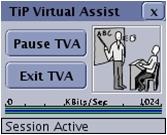
- The buttons displayed depend on the current status of the training session.
- Click Exit TVA to close the screen without connecting to TVA.

