About this task
Use these steps to open or launch READY View when you want to process time-course or dynamic data sets with multiple series.Step-by-step instructions
- From the header area of the screen, click the
 to open the Image Management work area.
 - From the Patient List, select an exam that has multiple READY View series.
- From the Session Apps List, click READY View.
- From the Series Loading Panel, place a check in the desired series and click OK.
In this workflow, select multiple ASL series.
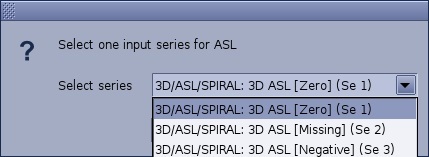
- From the Select Series screen that displays when multiple ASL series are selected, click the series for the first ASL review step from the menu.
Figure 1. Select Series ASL screen
- Click OK.
The selected series is loaded into the ASL Review Step.
- To select a different ASL Series follow these steps.
- From the Review Steps area, click the
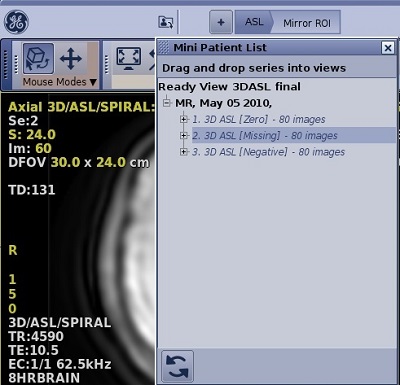
 to open the list of series for the currently active exam.
Figure 2. Mini Patient List screen
- Drag and drop one series from the list into all four viewports.
- If needed, click the
 to update the Mini Patient List.
 - Click X in the upper right corner to close the Mini Patient List.
- Click the ASL Review step tab to refresh viewports with the new series.
- To select an entirely different dynamic series follow these steps.
- Click the
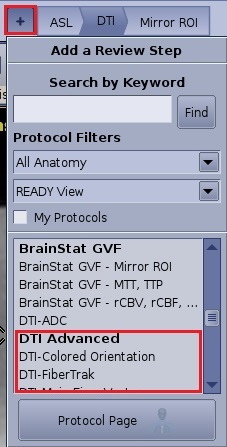
 from the Review Steps area, to open/close the Add a Review Step screen.
Figure 3. Add a Review Step screen
- Click on a DTI protocol for example, and the Select Series screen opens.
- Select the desired series from the menu.
- Click OK.
The selected series is loaded into the DTI Review Step.