

- 00000018WIA3021E870GYZ
- id_400247081.2
- Mar 11, 2022 9:39:29 AM
Open READY View with a single series
About this task
Use these steps to open or launch READY View when you want to view a single READY View protocol.
Step-by-step instructions
- From the header area of the screen, click the
 to open the Image Management work area.
 - From the Patient List, select the exam, and a single series that you want to use in the analysis.
Figure 1. Example of an exam where only a single series is to be processed in READY View 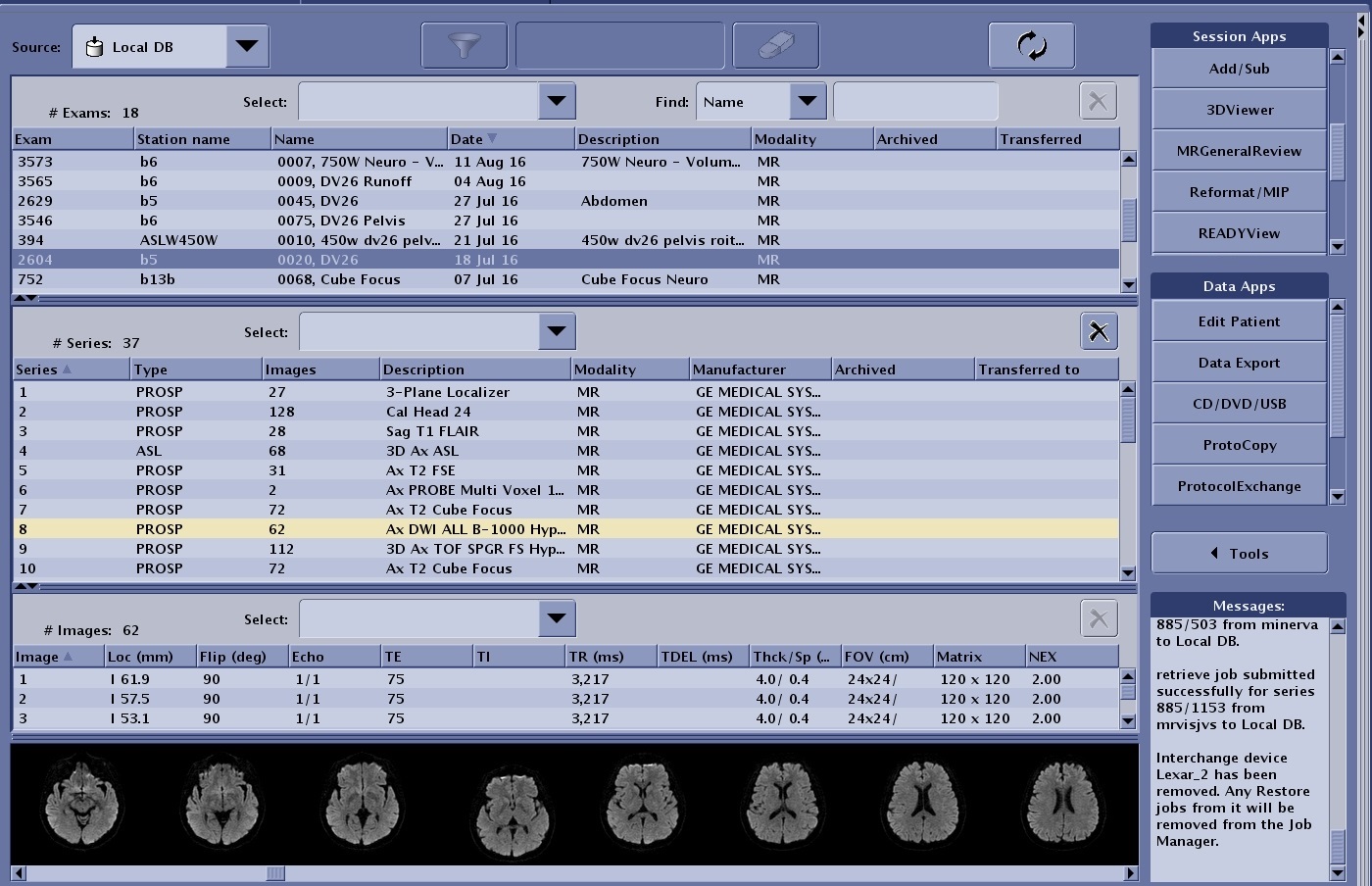
- From the Session Apps List, click READY View.
Figure 2. READY View application on the Session Apps list 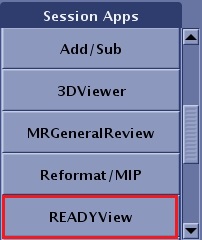
- From the Series Loading Panel, click OK.
Figure 3. Series loading panel that shows a single series selected 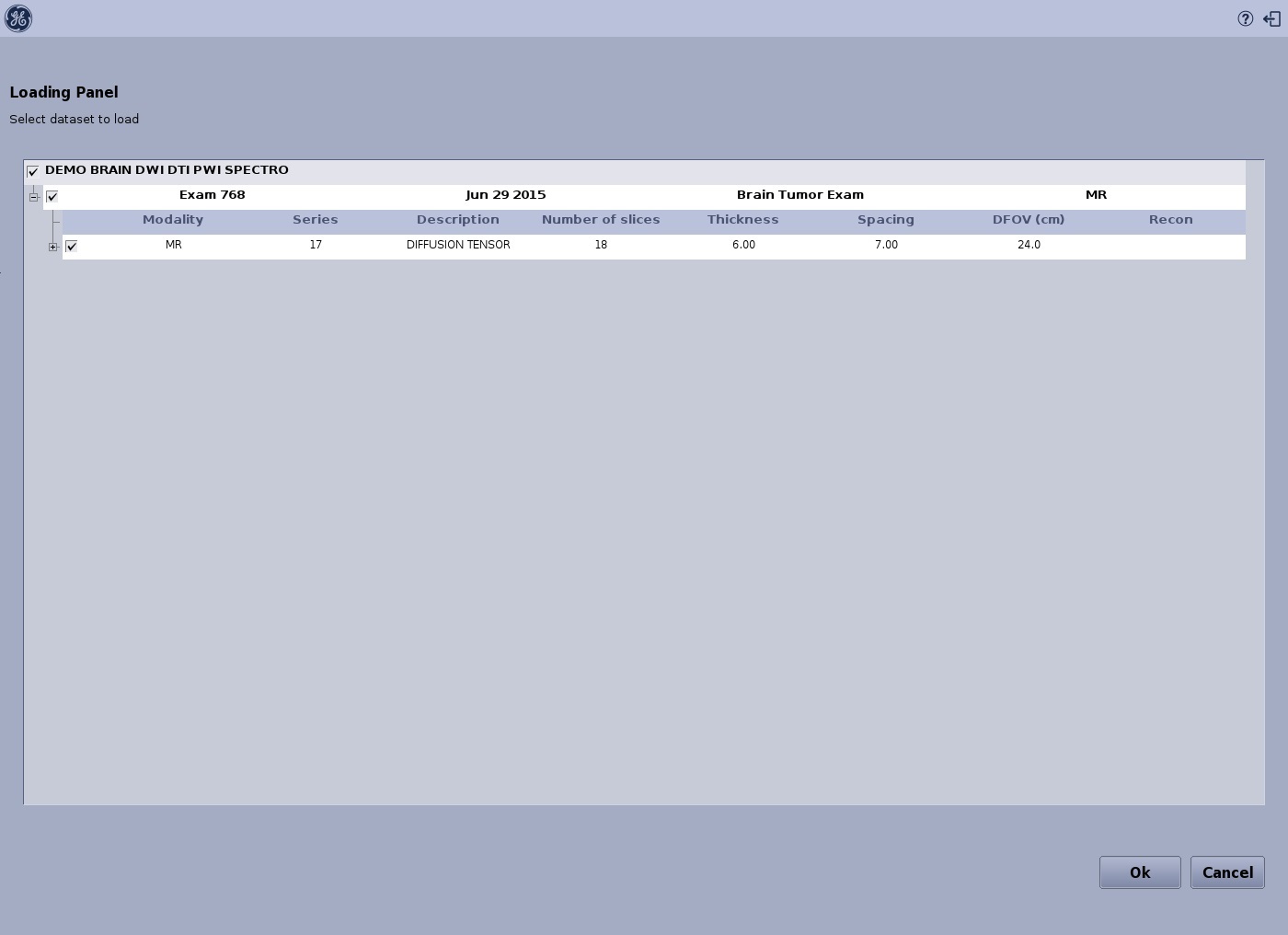
- The system loads the selected images into the READY View work area and the application is launched.
- To go back to the Protocol Selection screen, click Cancel.
- To exit READY View, click Exit.