

- 00000018WIA30BFE770GYZ
- id_400236011.2
- Mar 9, 2022 6:04:44 PM
Review Manager and layouts work area
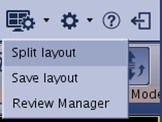
Click the  located in the upper right corner of the screen to view the Layout and Review options menu.
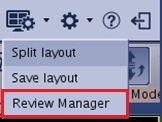
Review Manager
From the Layout and Review options menu, select Review Manager to view the Review Manager screen.
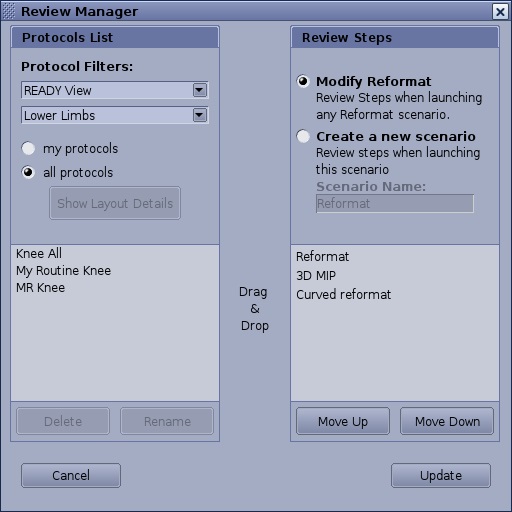
The Review Manager screen allows you to modify the following:
- The Protocol List is a list of all preset layout protocols, both user and GE created. You can delete or Rename a protocol, and filter the list of protocols by selecting my protocols or all protocols option buttons.
- The Review Steps allows you to rearrange the Review steps and to create a new scenario or set of Review Steps and then name the review steps, which then becomes a protocol.
Split layout
From the Layout and Review options menu, select Split layout to view the Split layout screen.
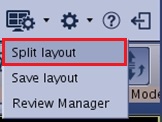
The Split layout screen allows you to do the following:
- Select a screen layout from the preset options on the Layout presets tab.
- Customize the layout of a viewport or add a viewport from the Advanced customization tab.
- Click Undo to reset to the previous layout.
- Click
 to permanently delete a layout. GE layouts cannot be deleted.
Save layout
From the Layout and Review options menu, select Save layout to view the Save Protocol or Review Step screen.
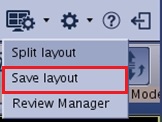
Save layouts saves your layout to your protocol.
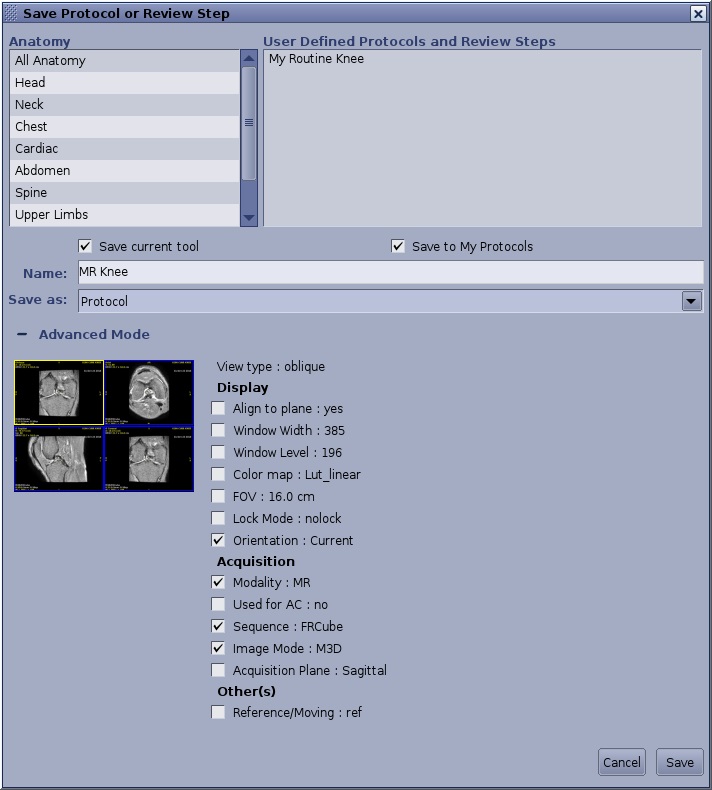
For details, see Save a layout procedure.