About this task
Use these steps to view the trends of your DAQA tests.Step-by-step instructions
- Open the Service Desktop Manager.
- From the Image Quality tab, select Daily Automated Quality Assurance .
- Click Click here to start this tool to open the tool and click OK to the prompt(s).
- Click Trend Data to view the Trend Viewer screen.
Figure 1. Trend Viewer screen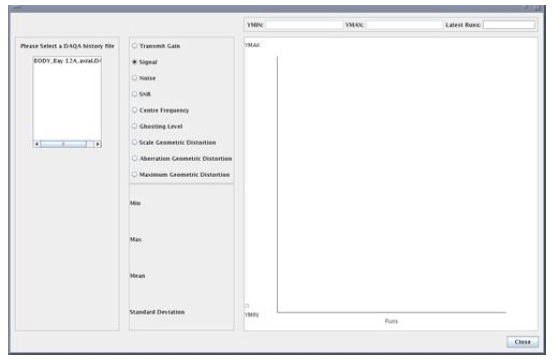
- Click one of the coils and one of the items in the Result File list to view the trend graph.
Figure 2. Trend graph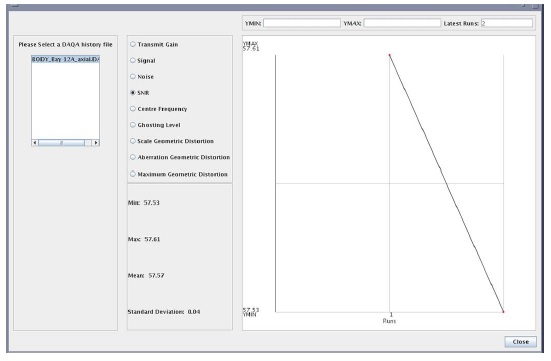
- Click any of the available option buttons to view a unique graph, which is representative of the option label.
- Click Close to close the Trend Viewer screen.

