Use these steps to lock the screen and switch the user of the system. When you or another user logs back in, the system returns to its last known state.
Step-by-step instructions
In the header area of the screen, click the Tools icon .
In the System Management work area, click the Service Desktop Manager tab.
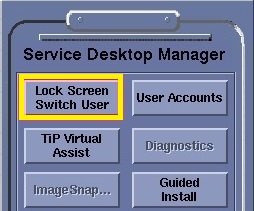
In the Service Desktop Manager, click Lock Screen Switch User.
Figure 1. Top area of Service Desktop Manager
The Logon screen displays for you to log on to the system.
Only users with valid accounts set up by the system administrator can log on to the system, unless the Emergency Logon Allowed feature is enabled.


 .
.