

- 00000018WIA30B96190GYZ
- id_400231501.6
- Jul 4, 2022 5:07:31 AM
Mobile launch procedure
About this task
Use these launch process: (precondition FE needs set the MR system to mobile system and shares the MRMobile OS account password to operator)
Step-by-step instructions
- Launching BY using new MRMobile account:
- Chose root login when system startup.
Figure 1. Root login screen 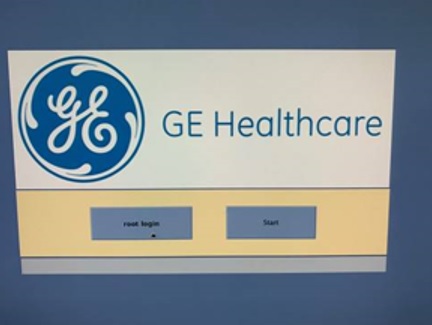
- Press “Not listed” when login with OS account.
Figure 2. Login with OS account screen 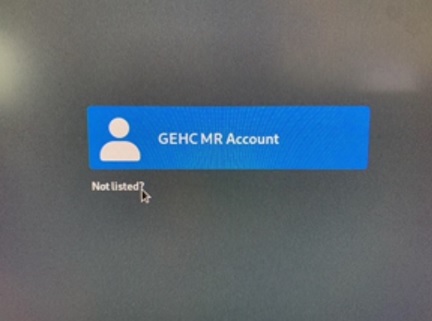
- Input new account "MRMobile" as User name.
Figure 3. Username screen 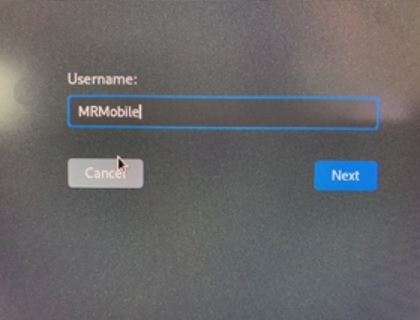
- Input password.
- Check with your system administrator for your specific logon credentials, if you don't know your password.
Figure 4. Password screen 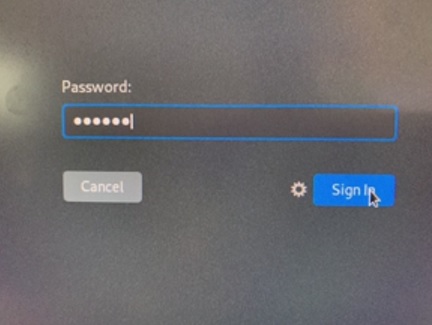
- Once login to the system, the mobile configuration UI will popup automatically.
Figure 5. Mobile configuration UI 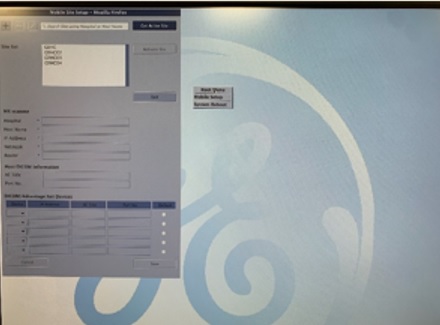
- Chose root login when system startup.
- Launching BY legacy way in SDM.
- Choose “GI Mobile” in SDM and input “MRMobile” account password.
Figure 6. Password screen 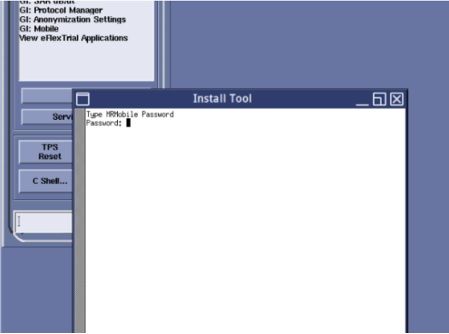
- Mobile configuration UI will launch.
Figure 7. Voyager Mobile UI 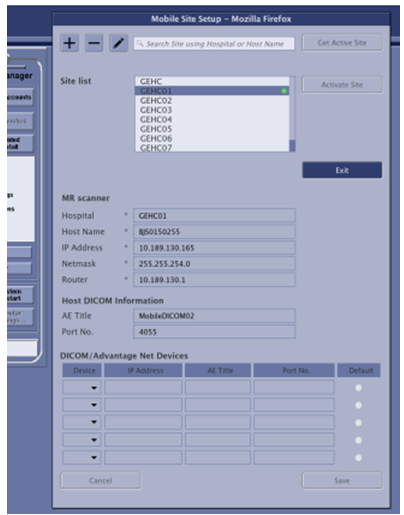
- Choose “GI Mobile” in SDM and input “MRMobile” account password.
- Overview for UI
Figure 8. UI screen 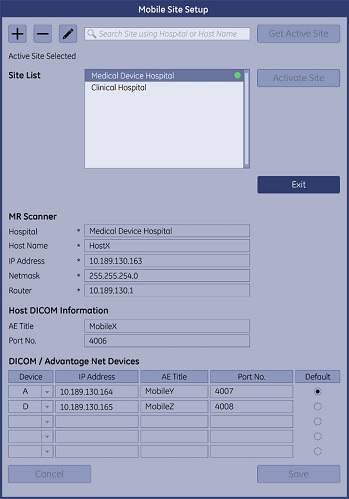
Click on icon
 to add a new site.
Click on icon
 to modify a site.
Click on button
 to confirm adding or modifying.
Click on
 to erase any change.
-
Note: The rule for all the input content are as below.
- Hospital Name:
- Should be within 1-31 characters.
- Can contain only "A-Z", “a-z”, "0-9", "-" or "_".
- Host Name:
- Should be within 1-31 characters.
- Can contain only "A-Z", “a-z”, "0-9", or "-".
- Can not begin with "0-9", "-" or "_"
- IP Address:
- Byte value can not be greater than 255.
- Can not be 255.255.255.255
- Leftmost byte value can not be 0.
- Can not begin or end with a dot.
- Can not have more than three dots.
- Can not have consecutive dots.
- Can contain number and dots only.
- NetMask:
- Byte value can not greater than 255.
- Can not begin or end with a dot.
- Can not have more than three dots.
- Can not have consecutive dots.
- Can contain number and dots only.
- Router:
- Can not begin or end with a dot.
- Can not have more than three dots.
- Can not have consecutive dots.
- Can contain number and dots only.
- AE Title:
- Should be within 1-16 characters.
- Can not begin with "-" or "_".
- Can contain only "A-Z", "a-z", "0-9", "-" or "_".
- Port NO:
- Can contain only numbers.
- Should be between numeric value 1-65534.
- Hospital Name:
-
-
Click on icon
 to remove a site.
Click on the pop-up window: "Yes" to confirm and "No" if want to cancel.
Figure 9. Pop-up window screen 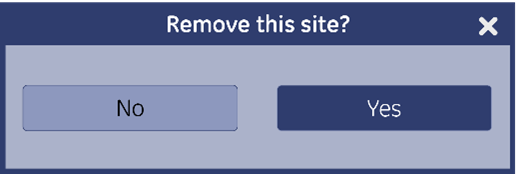
- Enter keywords in the input box
 to search a site from the Site List. The sites which contain the keywords are filtered and listed directly.
Click on the
 to cancel the search.
 - Click on button
 to get the initially activated site.
 - Click on button
 to active the selected site from the Site List.
Click on "Reboot" or "Power Off" to confirm activation.
Click on "Continue (Active later)" to reboot or power off later for activation.
Click "X" to cancel the activation.
Figure 10. Mobile Site Activation Screen 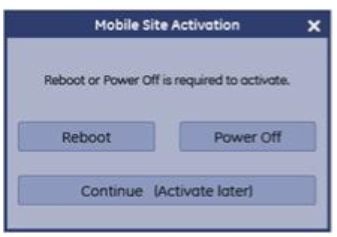
- Click on button
 to exit the Mobile Site Setup UI.