Remote service enables system connectivity to GE Healthcare's back office. A valid GE System ID and an internet connection to the system is needed in order to establish this connectivity.
Use these steps to configure RSvP Remote service on your system.
Step-by-step instructions
In the header area of the screen, click the Tools icon .
In the System Management work area, click the Service Desktop Manager tab.
In the Service Desktop Manager, click Service Browser.
From the MR Service Desktop screen, click the Configuration tab.
From the left pane, select Configure Insite.
Click Click here to start this tool and complete all fields.
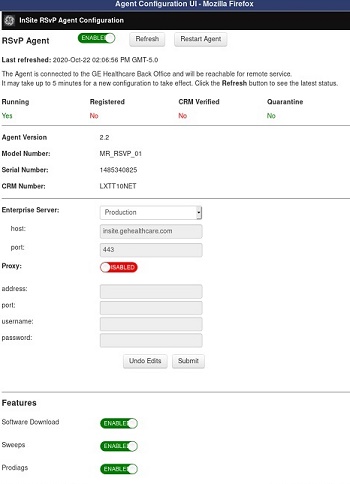
The Agent Configuration screen displays. Figure 1. Agent Configuration screen
CAUTION
Disabling connectivity disconnects the system from the GE Healthcare Back Office. This will make the system unreachable for remote service or AutoSC sweeps. If connectivity is disabled, it can be enabled again by clicking the Enable Connectivity Button.
Ensure that the CRM number displayed is exactly the same as the system ID that belongs to your system. If this is not configured correctly, then update the correct system ID in the Service ID and System ID fields under the System Configure tab in Guided Install.
Guided Install modifications of system ID and networking information updates are only allowed in the root login environment.
If internet connectivity to the system is established via proxy, then enable the Proxy setting and provide the proxy credentials.
If internet connectivity to the system is established via DNS, then configure the DNS Option in Guided Install under the Networking tab.
Guided Install modifications of system ID and networking information updates are only allowed in the root login environment.
Click Submit after you type all of the information. It could take up to 5 minutes for connectivity to be established. Click Refresh to check the status.
Observe the following, which indicates connectivity is successfully established:
Running is Yes.
Registered is Yes.
CRM Verified is Yes.
Quarantine is No
If entitled, GE Remote Service involves analysis of system performance data and downloading software updates. This data can be sent back and forth from the system through one of the following methods. Note that data collected through these methods are used only to enhance product/service quality.
Proactive Diagnostics (ProDiags): Automatic push of system hardware parametric data at regular intervals
Sweeps: Automated scripts that login from the GE back office to pull only system configuration and performance data
Software Download: Used to download software updates in the form of service packs to the system
Click an item in the Feature List window to enable or disable the remote features.
Contact GE service if you have a problem configuring RSvP.
Click Disable Connectivity if you want to stop remote service connection.


 .
.