

- 00000018WIA3077E880GYZ
- id_20350661.2
- Nov 19, 2021 10:57:30 AM
Renew Secure Service Access license
About this task
- Depending on your soft service license contract, your key may expire in 1 year from first date used. Refer to the service license page for expiration dates.
- For additional information on your SSA license, contact your local sales/service representative.
- To find how to order a new license and more details regarding the new Secure Service Access customer website link, refer to the service licensing section in the service documentation.
Use these steps to access the SSA screen.
Step-by-step instructions
- In the header area of the screen, click the Tools icon
 .
. - The Service License screen displays.
Figure 1. Example of a Service License screen. Your screen will vary based on the licenses on your system. 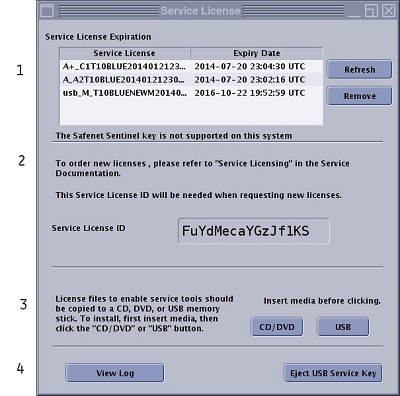
Table 1. Image legend Number Description 1 Service License Expiration area displays the Service License name and its expiration date. - Click Refresh to update the list.
- Click a license from the list and click Remove to remove a service license.
2 Your service license ID that is required to order new licenses. 3 Use a CD, DVD or USB drive to install a new Service License file (used by service representative). 4 Click View Log to view the date, License name and its status. Click Eject USB Key (used by service representative) to remove the USB service key.