Before you begin
The patient name field must be completed before you change the patient weight or select AutoStart or Patient Position.About this task
Use these steps to define the patient weight and orientation and activate auto start from the in-room monitor.Step-by-step instructions
- Setup an exam and click Start Exam from the Worklist Manager.
- From the in-room display, use the touch screens to select Patient Setup tab.
- From the Patient Setup tab, touch the weight text field to display a numeric keypad.
- From the numeric keypad, touch the number you want to enter. Repeat this for each number you want to enter.
Figure 1. Numeric keypad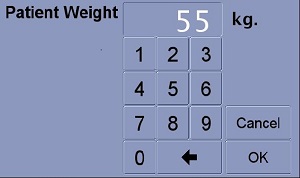
- Touch the Arrow key to backspace.
- Touch Cancel to erase the text in the weight field.
- Once you acquire the first series, you are unable to access the key pad to change patient weight.
- When you are satisfied with the number in the text field, touch OK.
- The pop-up key pad closes.
- Auto Start is now selectable. To turn on Auto Start, touch the Auto Start check box.
- To change the patient orientation selection, touch the desired
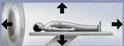 .
.

