

- 00000018WIA30206870GYZ
- id_400267851.10
- Aug 8, 2022 7:20:45 PM
Adjust the magnet fan or light levels
About this task
| Icon | Description |
|---|---|
 | Light controls the light within the magnet opening. There are three settings. |
| Fan controls the circulation of air within the magnet opening. There are three settings. |
| From the magnet room, press the light or fan control. Each time you press the control the light/fan moves up to a higher level. The level indicator remains illuminated to indicate the level status. | |

Turn off the magnet fan or light
Press the button until the display next to the button is not illuminated.
Step-by-step instructions
Adjust the fan or light level from the control room:
- Display the Gating Control screen.
- From the footer area of the screen, click the
 .
. - Alternatively, in the header area, click the
 to open the System Management work area. Click the Gating/Fan/Light tab to open the Gating Control screen.
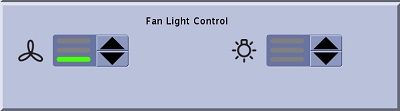
 - From the Fan Light Control area of the Gating Control screen, click the up/down arrows to adjust the speed of the fan or intensity of the light inside the magnet.
The bar illumination status is defined as follows:
- No bars = fan/light off
- One bar = low
- Two bars = medium
- Three bars = high